This guide will walk you through creating your first interactive video on Nesoi. By the end, you'll have a working interactive experience ready to share.
Step 1: Access Your Dashboard
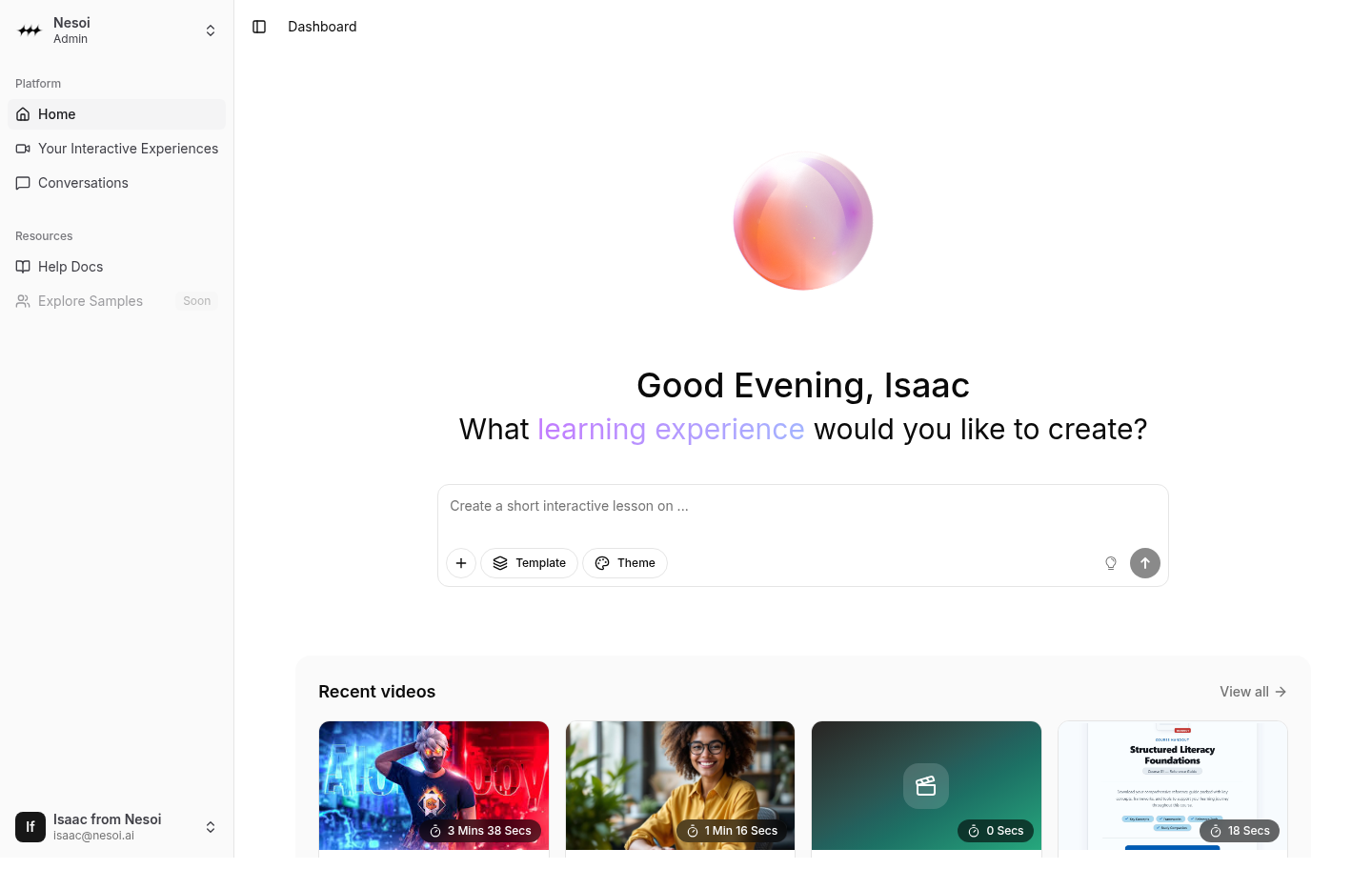
After logging in, you'll land on the Dashboard page. This is your home base where you can:
- Create new interactive videos
- View recent updated videos
Step 2: Create a New Video
You have two ways to create a new video:
Option 1: From the Dashboard Look for the main creation area at the center of the page with a text box. This is where you describe what you want to create.
Option 2: From the Sidebar
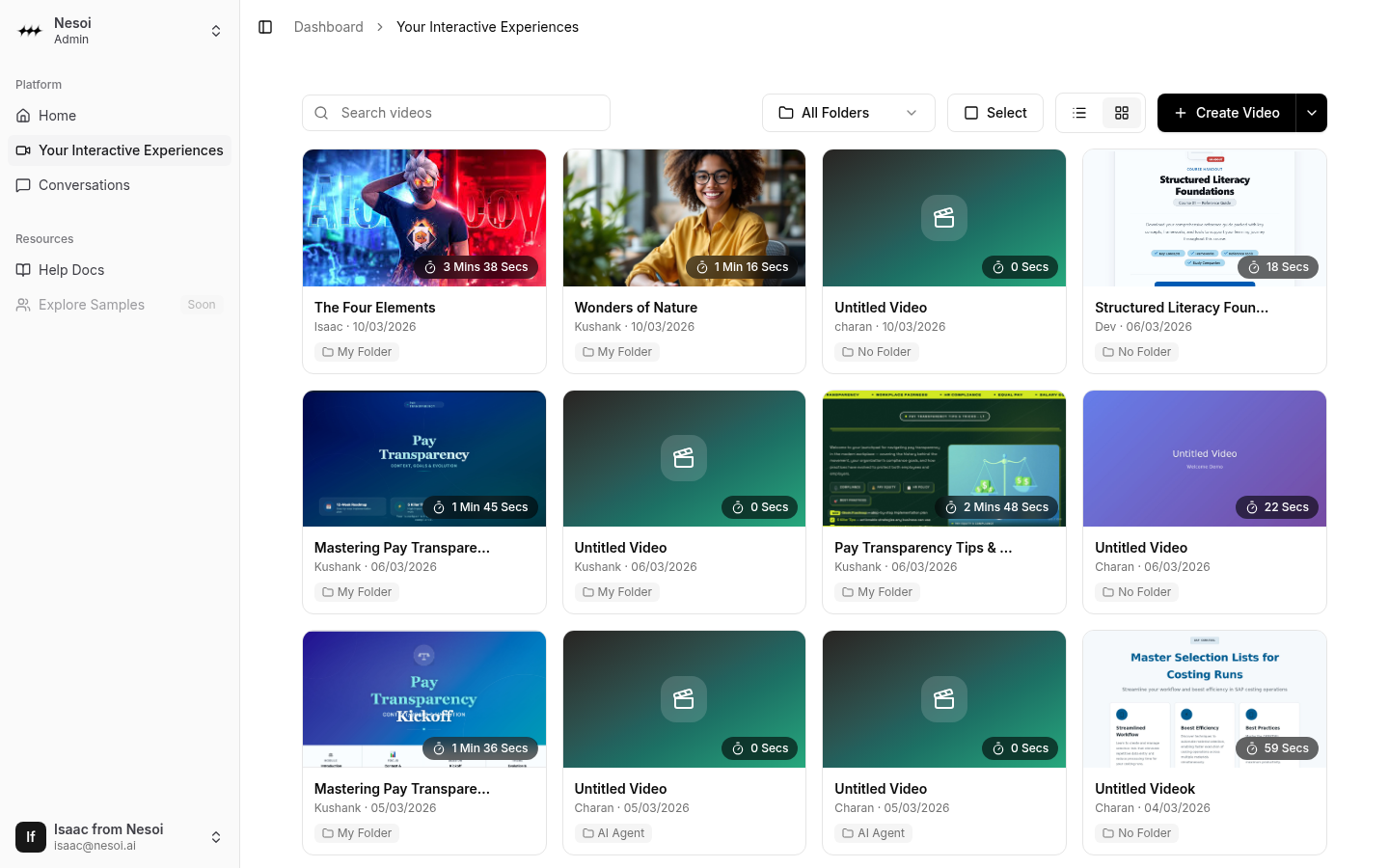
Click "Your interactive experience" in the sidebar, then click the "Create new video" button in the top right corner.
Using AI to Generate Content
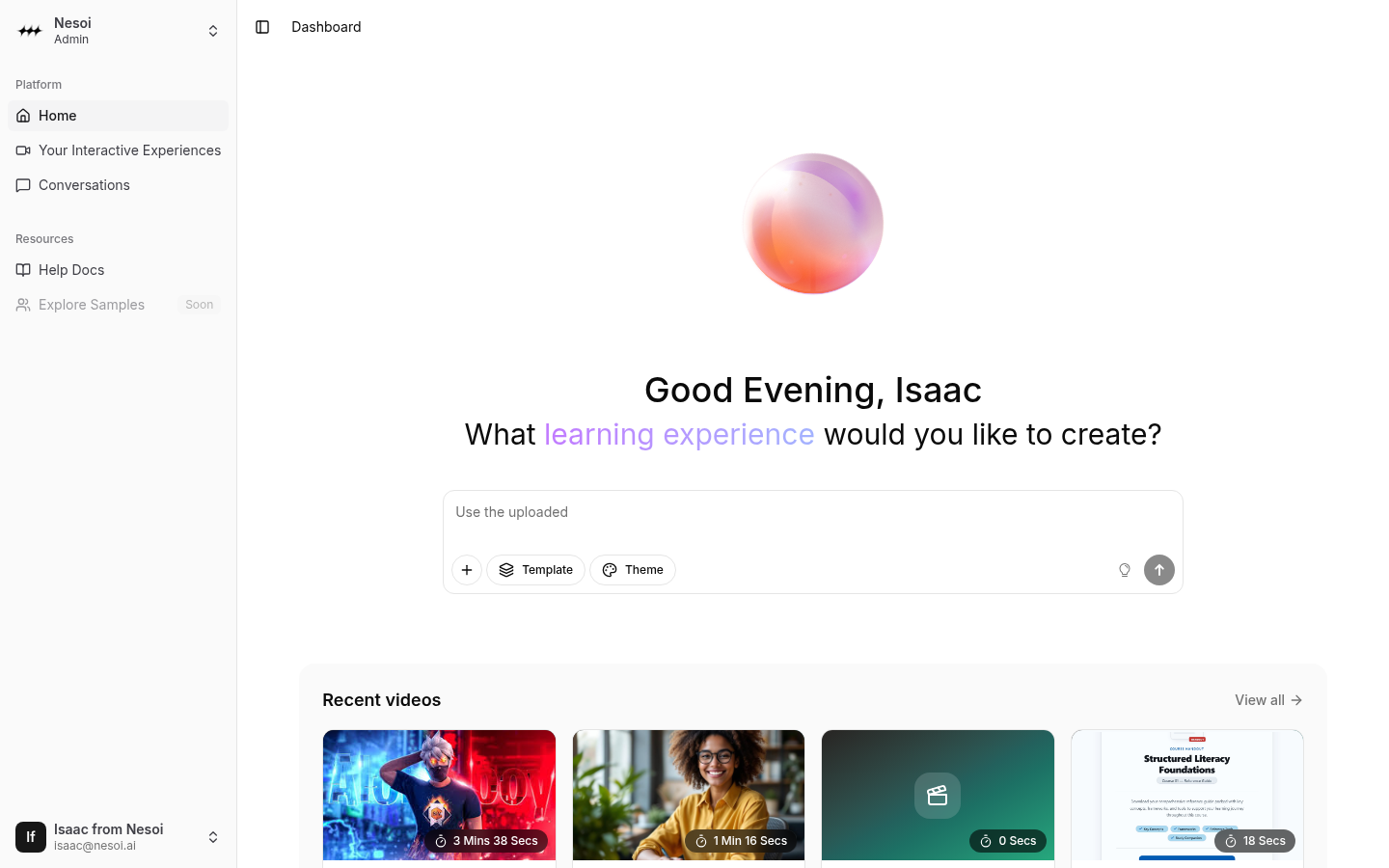
- Type a description of your video topic in the text box
- For example: "Create a video explaining how to use our customer support system"
- Click the generate button to let AI create your content structure
The AI will generate chapters and content based on your description.
Step 3: Use the Video Editor
Once created, you'll see the Video Editor:
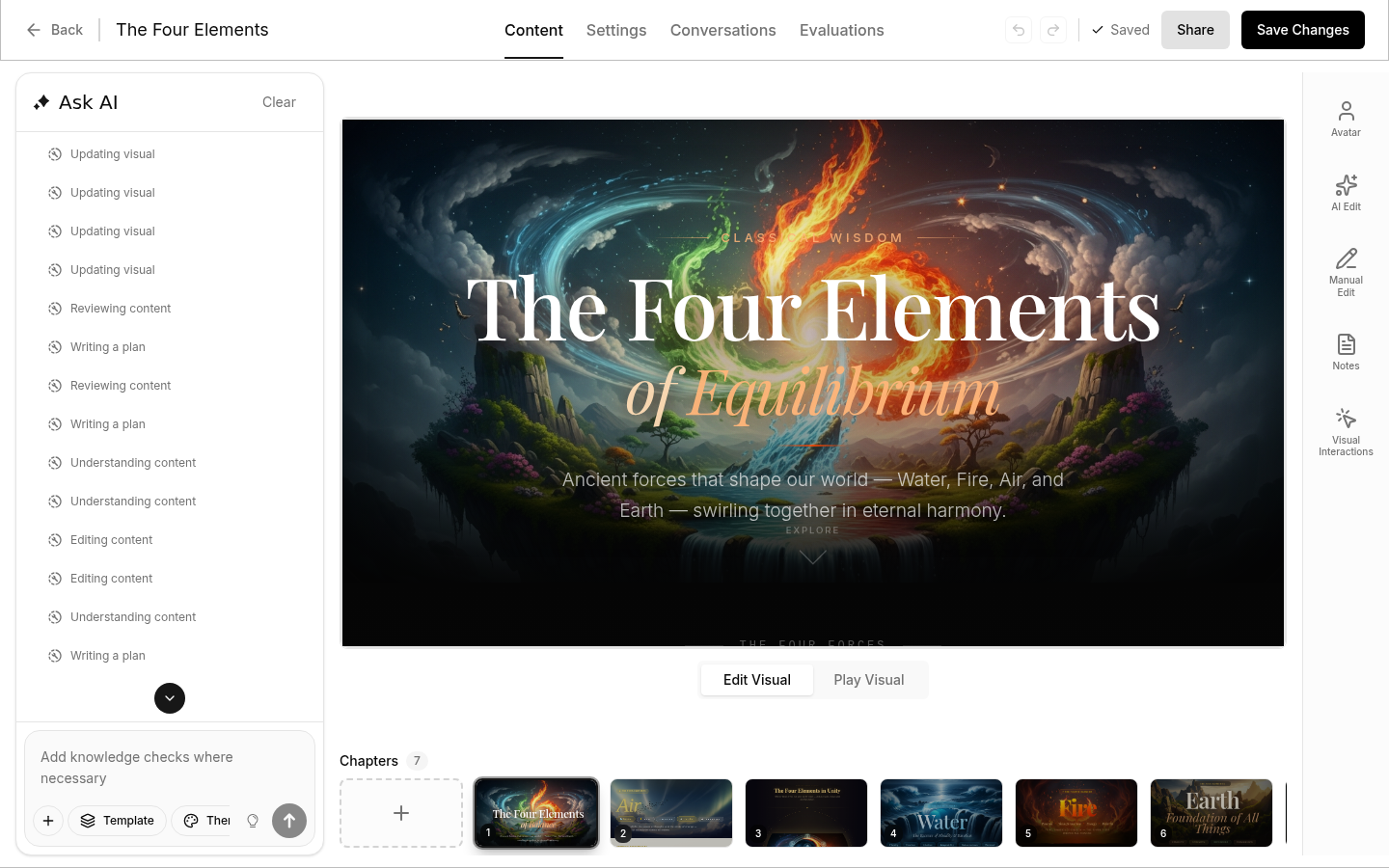
Left Section - AI Chat
Chat with the AI assistant to make changes to your video. Ask it to:
- Modify existing content
- Change the visual theme
Center Section - Visual Preview
See a real-time preview of your current chapter, showing the visual content viewers will see.
Bottom - Chapters
View all your chapters as thumbnails. Click any chapter to select and edit it. Drag and move to rearrange the chapter order.
Step 4: Share Your Video
When you're satisfied with your video:
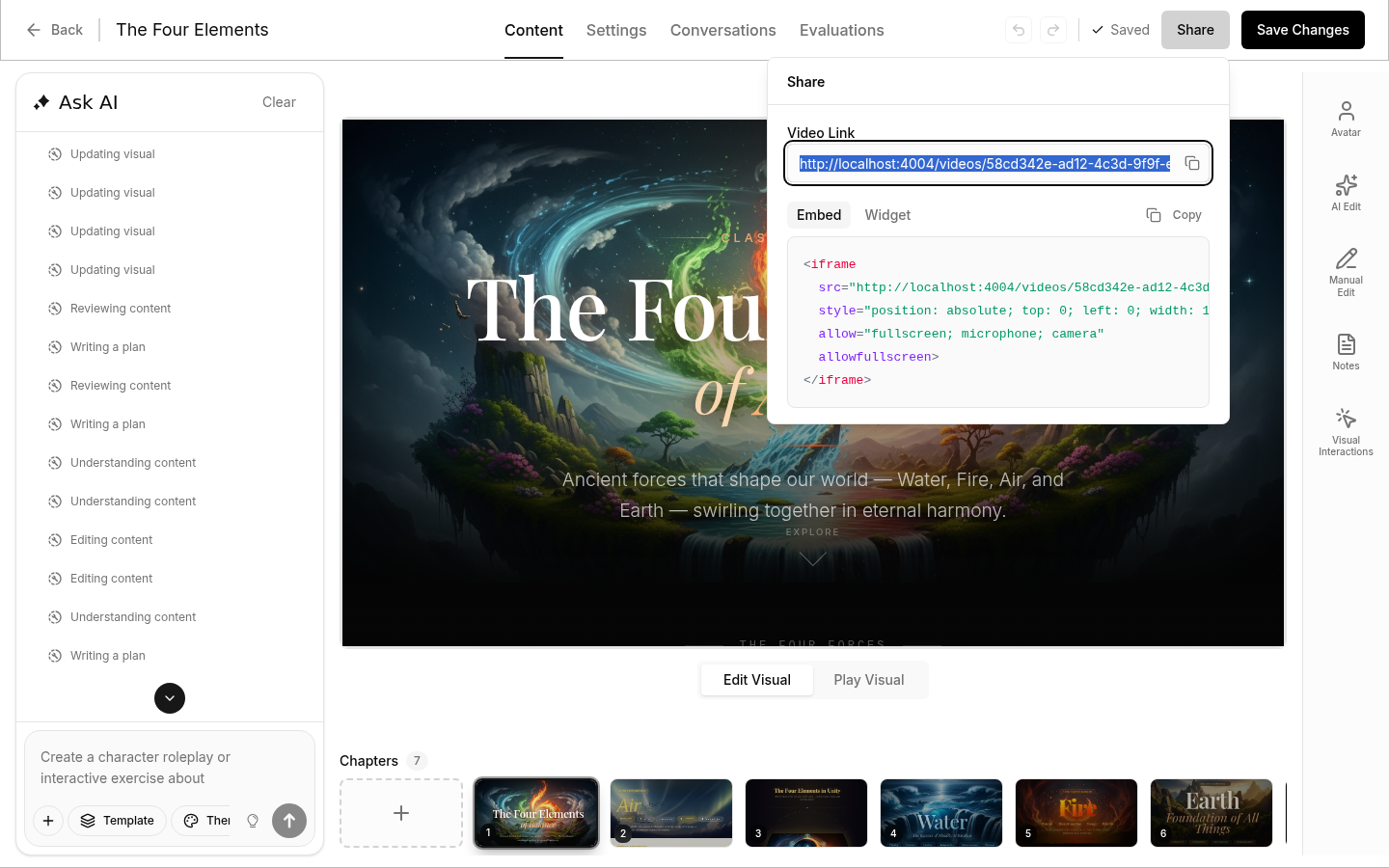
- Click the Share button
- Choose your sharing method:
- Direct Link: Get a URL to share directly
- Embed Code: Copy code to embed on your website
What's Next?
Now that you've created your first video, explore these topics to learn more:
- Learn about Chapters and Sections for complex content
- Configure AI Voice Options for your avatar
- Set up Folders to organize your videos