Chapters are the fundamental building blocks of every Nesoi interactive video. Each chapter contains a visual (the screen viewers see) and instructor notes (what the AI says). Understanding how to create and organize chapters is key to creating effective videos.
Understanding Chapters
Each chapter in your video is a distinct section that viewers can:
- Watch in sequence
- Navigate to directly
Think of chapters like slides in a presentation, but with richer interactivity and AI-powered narration.
Chapter Components
Visuals
The visual is what viewers see on screen during the chapter. Visuals can contain:
- Text - Headlines, body copy, bullet points, labels
- Images - Photos, graphics, icons
- Interactive elements - Buttons, forms, cards
- Layouts - Grids, sections, containers
Visuals are fully customizable through the visual editor. See Visual Editing for details on modifying visual elements.
Instructor Notes
Each chapter has associated instructor notes that control:
- Speaking Notes - What the AI avatar says during this chapter
- Interaction Notes - How the AI responds to viewer questions
See Instructor Notes for details.
Chapter Types
Each chapter has a type that determines how it behaves and what fields are available. Choose the type that best fits the content.
| Type | What it does | Key fields |
|---|---|---|
| General | Standard content presentation — the AI speaks and viewers listen or ask questions | Speaking notes, interaction notes |
| Quiz | Tests viewer understanding with a question | Speaking notes, correct answer and reasoning |
| Roleplay | Viewers practice a conversation scenario with the AI acting as a character | Speaking notes, character persona, roleplay instructions |
| Case Study | Presents a scenario and probes the viewer with follow-up questions | Speaking notes, probing instructions |
| Simulation | Interactive drawing canvas where viewers can sketch or diagram | Speaking notes, interaction instructions |
| Screen Share | Walk viewers through a screen recording or app demo | Details, step-by-step instructions |
| Feedback | Collects structured feedback from viewers | Feedback instructions |
| Video | Plays an uploaded video or media file | Video file, text overlays |
| Dynamic | Custom interactive content with AI-personalized elements | AI instructions, dynamic element configuration |
You can set a chapter's type when creating or editing it. Each type shows its own set of fields in the instructor notes panel.
Creating Chapters
Adding New Chapters
To add a chapter:
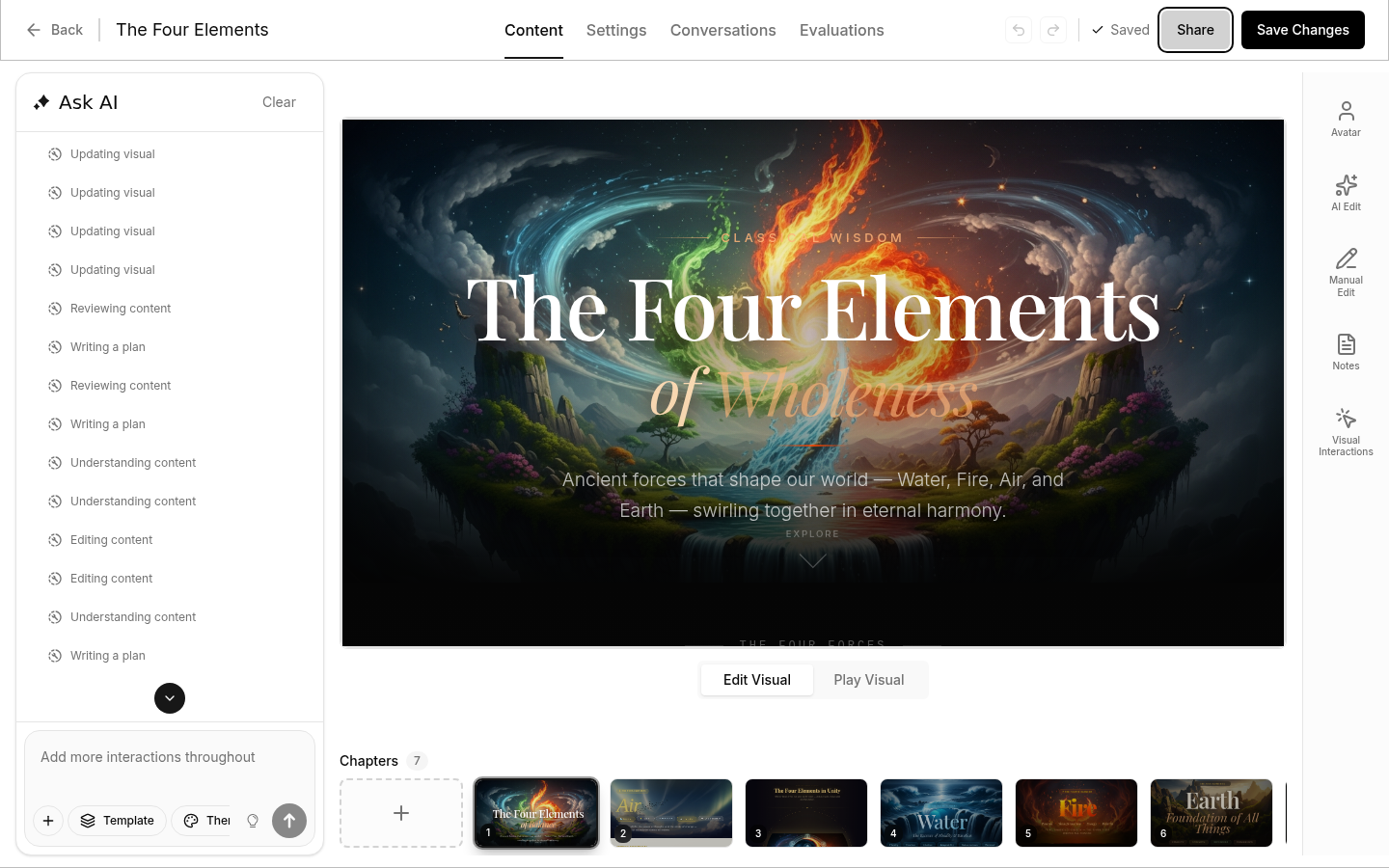
- Click the Add Chapter button at the bottom of the editor
- Choose to create an empty chapter or generate with AI
- The new chapter appears in the chapter list
Generating with AI
For AI-generated chapters:
- Click Add Chapter
- Select Generate with AI
- Describe what you want (e.g., "Create a chapter explaining our pricing plans")
- The AI creates both the visual and speaking notes
Organizing Chapters
Reordering
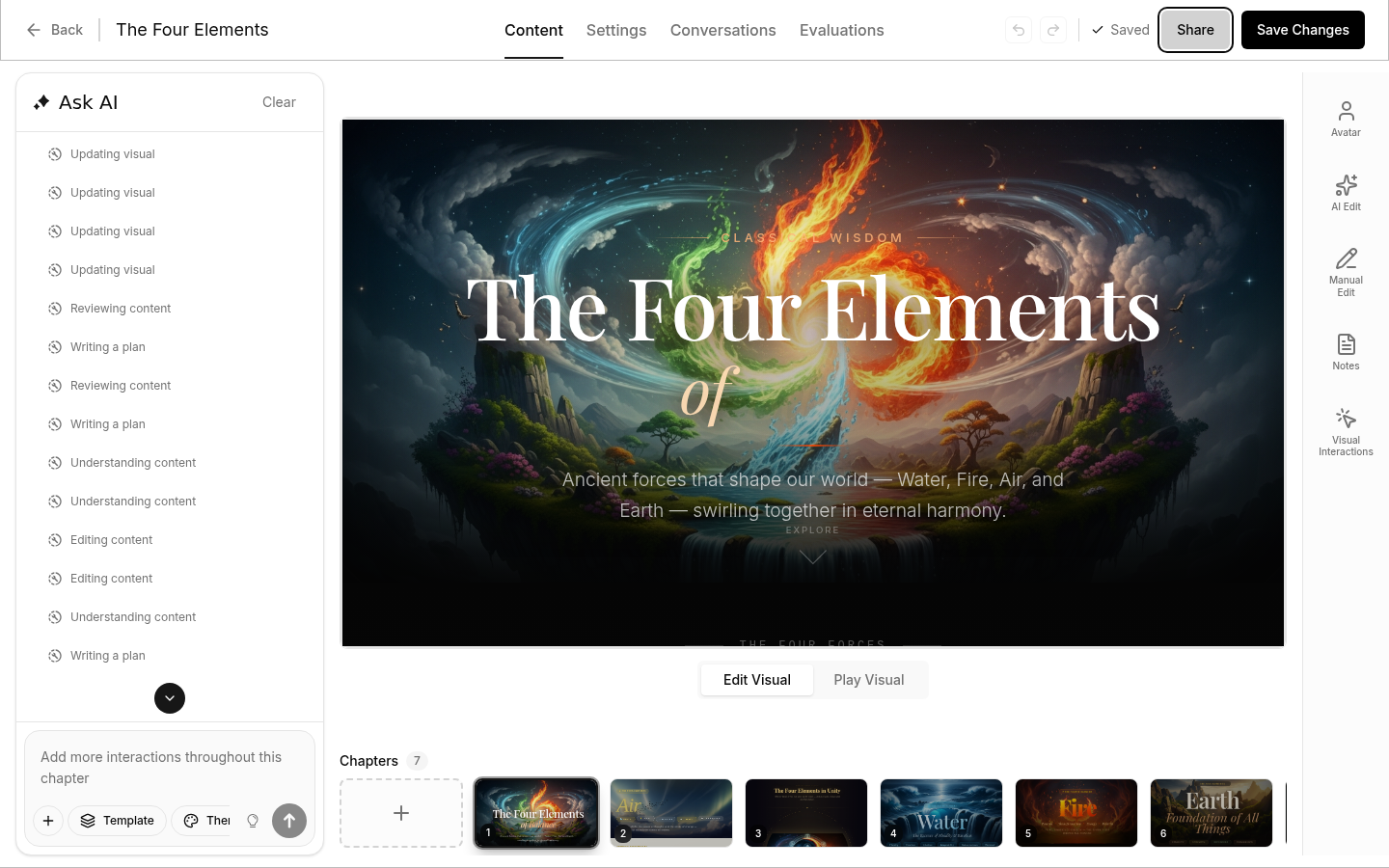
Drag and drop chapters in the chapter list to change their order. The sequence determines how viewers experience your content.
Selecting Chapters
Click any chapter thumbnail to select it. The selected chapter's visual appears in the preview area, and its notes appear in the Instructor Notes panel.
Best Practices
Keep Chapters Focused
Each chapter should cover one main topic:
- Easier for viewers to find information
- AI can reference specific chapters accurately
- Better engagement and retention
Consistent Length
Try to keep chapters similar in length:
- Aim for 30 seconds to 2 minutes of narration
- Avoid chapters that are too long or too short
- Split complex topics across multiple chapters
Visual Clarity
Design visuals to support the narration:
- Highlight key points visually
- Use consistent styling across chapters
- Don't overcrowd the screen