The Avatar Settings panel lets you control how the AI avatar appears on each chapter of your interactive video. You can show or hide the avatar, adjust its size and shape, and position it anywhere on the video screen.
Opening Avatar Settings
To access the Avatar Settings panel:
- Navigate to the Content tab in the video editor
- Select a chapter from the chapter list at the bottom
- Click the Avatar icon in the right toolbar
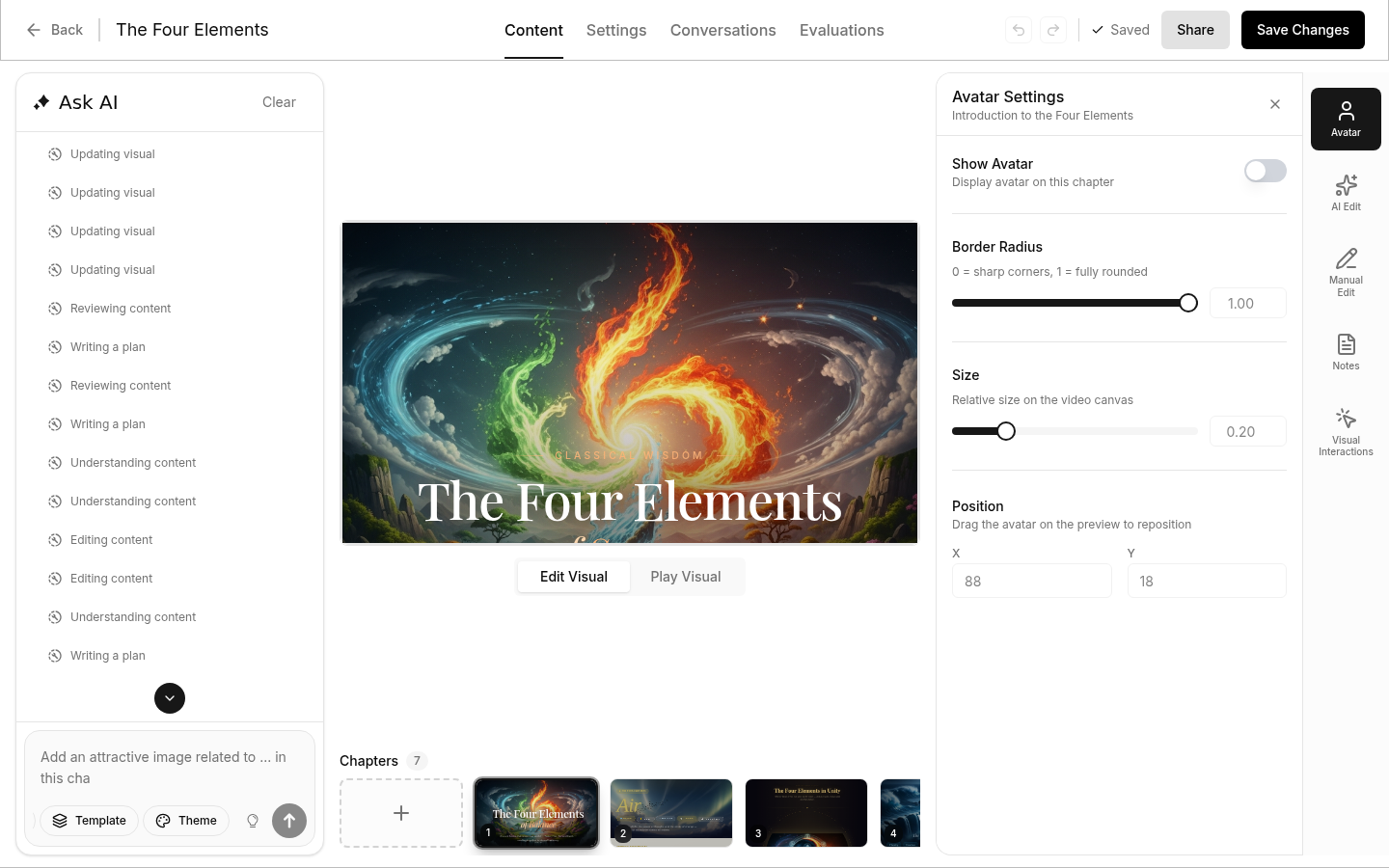
Settings Overview
Show Avatar
Toggle the avatar on or off for the selected chapter. When disabled, no avatar will appear during that chapter's playback.
- On — Avatar is visible on this chapter
- Off — Avatar is hidden on this chapter
Border Radius
Controls the corner rounding of the avatar frame.
- 0 — Sharp rectangular corners
- 1 — Fully rounded (circular)
Use the slider to adjust, or type a precise value (0–1) in the input field.
Size
Sets the relative size of the avatar on the video screen.
- 0 — Minimum size (5% of screen width)
- 1 — Maximum size (fills screen height)
Use the slider for quick adjustments, or enter a specific value in the input field.
Position
Controls where the avatar appears on the video screen.
- X — Horizontal position (0 = left edge, 100 = right edge)
- Y — Vertical position (0 = top edge, 100 = bottom edge)
You can either:
- Enter X and Y values directly in the input fields
- Drag the avatar on the preview screen to reposition it visually
Tips
- Avatar settings are saved per chapter, allowing different positioning for different content
- Changes are saved automatically — look for "Saved" in the top toolbar
- Use the preview screen to see exactly how your avatar will appear to learners