Templates and Themes control the visual appearance of your interactive videos. Templates provide comprehensive design systems that guide the AI when creating visuals, while Themes define colors, fonts, and basic styling.
Templates
Templates are design systems that guide how the AI creates visual content for your chapters. They provide comprehensive styling rules including layout patterns, typography, colors, animations, and component designs.
What Templates Do
Templates provide the AI with detailed design guidelines:
- Design Philosophy - The overall aesthetic approach and visual principles
- Layout Structures - How content is arranged (grids, cards, sections)
- Typography Rules - Font choices, sizes, weights, and hierarchy
- Color Palettes - Primary, secondary, and accent colors
- Component Styles - Buttons, cards, lists, accordions, etc.
- Animation Patterns - How elements appear, move, and interact
- Responsive Behavior - How designs adapt to different screen sizes
How Templates Work
When you assign a template to a video:
- The AI reads the template's complete design system
- When creating or modifying visuals, it follows these patterns exactly
- Your content maintains consistent styling across all chapters
- The AI makes design decisions based on the template's philosophy
Available Templates
Style Templates
Style templates define a complete visual aesthetic:
| Template | Description | Best For |
|---|---|---|
| Bauhaus | Geometric shapes, primary colors, bold typography inspired by 1920s Bauhaus movement | Creative, artistic content |
| Architectural Blueprint | Technical, grid-based design with measurement markers and drafting aesthetics | Engineering, technical training |
| Bold Editorial | High-impact typography with dramatic layouts and custom cursor interactions | Marketing, brand storytelling |
| Minimalist | Clean lines, generous whitespace, subtle animations | Professional, corporate content |
| Glassmorphism | Frosted glass effects, subtle gradients, modern depth | Modern SaaS, tech products |
UI Component Templates
Component templates provide patterns for specific interactive elements:
| Template | Description | Best For |
|---|---|---|
| Animated List | Scroll-triggered animations, keyboard navigation, gradient effects | Feature lists, process steps |
| Animated Stepper | Smooth slide transitions, progress indicators, step-by-step flows | Tutorials, onboarding |
| Bento Grid | Interactive grid with spotlight, border glow, and tilt effects | Dashboards, feature showcases |
| Cards | Various card layouts with hover effects and animations | Content organization |
Landing Page Templates
Landing page templates are designed for promotional content:
| Template | Description | Best For |
|---|---|---|
| Product Launch | Hero sections, feature grids, testimonials, CTAs | Product announcements |
| SaaS Landing | Pricing tables, feature comparisons, social proof | Software demos |
| Portfolio | Media reveals, project showcases, contact sections | Creative showcases |
Reference Video Templates
In addition to style templates, you can use an existing video from your organization as a template. This tells the AI to follow the visual style of that video when creating new content.
- Click the Template button
- Switch to the Reference Videos tab
- Browse your organization's existing videos
- Click one to preview its chapters
- Select it as a template
You can combine a reference video template with a style template and a theme for maximum control.
Selecting Templates
- When creating a video, click the Template button
- Browse templates by category (Style, UI Component, Landing Page, or Reference Videos)
- Click a template to see its preview and description
- Select the template to apply it to your video
- You can add multiple templates to the same video
You can also select templates when editing:
- Open your video in the editor
- Access the template selector
- Choose a new template to change the visual style
Template Examples
Bauhaus Style
The Bauhaus template creates visuals with:
- Pure geometric shapes (circles, squares, triangles)
- Primary colors (red, blue, yellow) on black/white backgrounds
- Bold, uppercase typography with tight tracking
- Hard-edge shadows (no blur)
- Asymmetric but balanced compositions
Minimalist Style
The Minimalist template creates visuals with:
- Generous whitespace
- Subtle, muted color palette
- Clean sans-serif typography
- Minimal decorative elements
- Smooth, understated animations
Themes
Themes set the overall look and feel of your video, including:
- Colors: Background, text, accents, and highlights
- Typography: Fonts and text styling
- Spacing: Layout and breathing room
- Components: Button styles, card designs, and more
Selecting a Theme
- When creating a new video, click the Theme button in the creation area
- Or, when editing a video, click the Theme button in the editor
- Browse available themes and click to preview
- Click Apply to use the selected theme
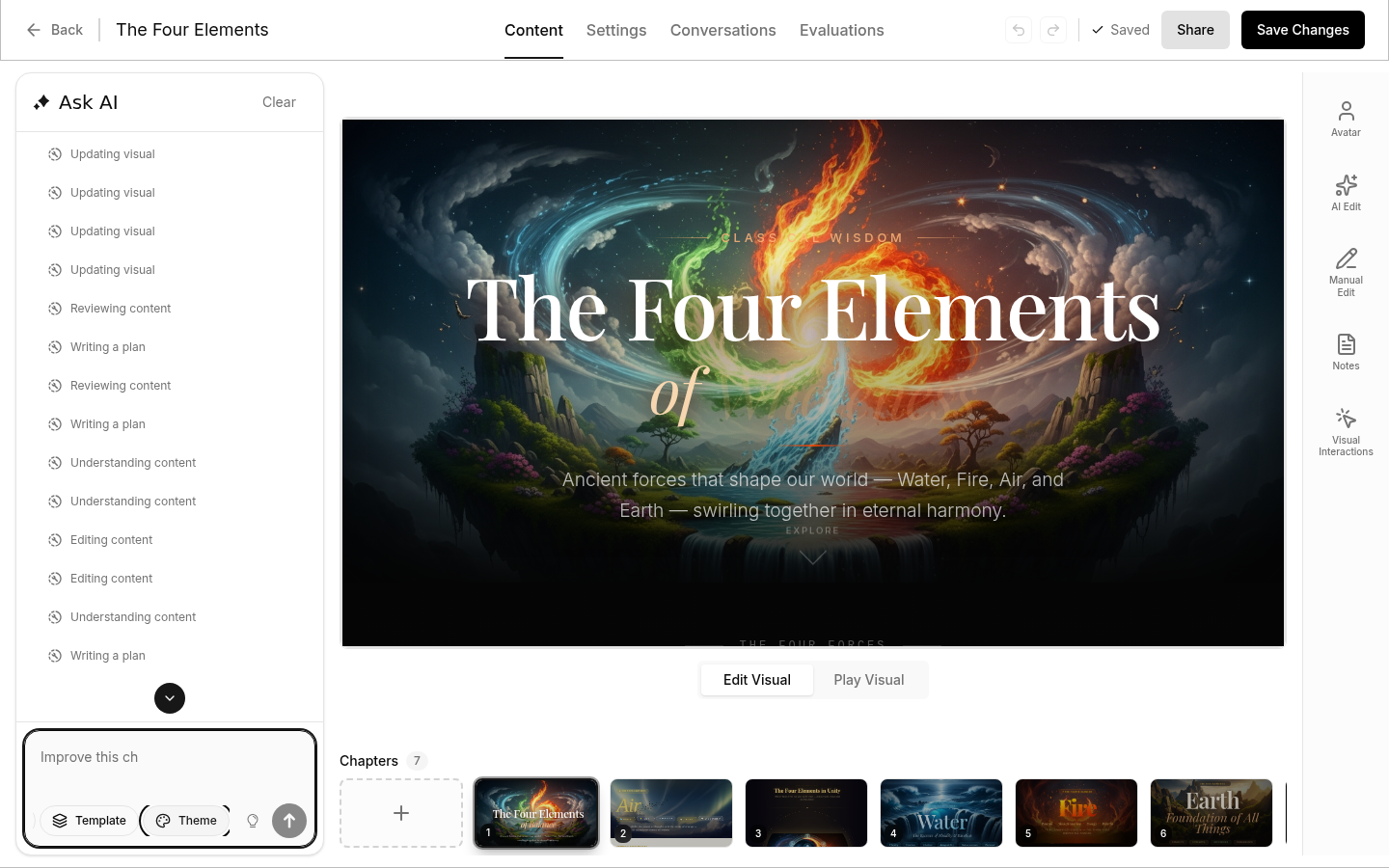
Built-in Themes
Nesoi includes several pre-designed themes:
- Default - Clean, professional look suitable for most content
- Corporate - Formal styling for business presentations
- Creative - Bold colors and modern typography
- Minimal - Simple, distraction-free design
- And more... - Browse the theme gallery for additional options
Creating Custom Themes
- Click Create new theme in the theme selector
- Customize colors, fonts, and styling
- Preview your changes in real-time
- Save your theme for use across videos
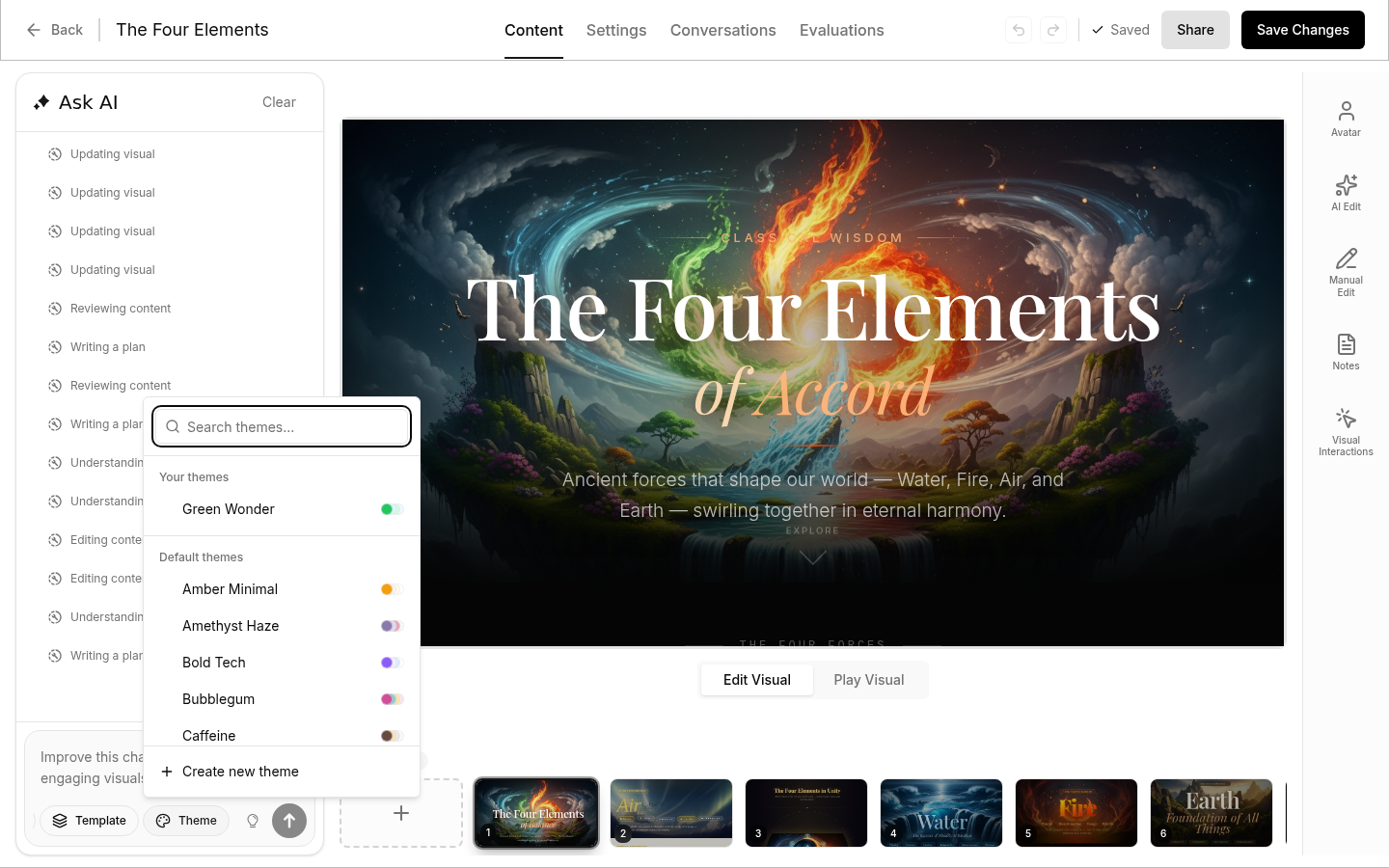
Custom themes are saved to your organization and can be used by all team members.
Choosing the Right Theme
Consider:
- Your brand: Select themes that match your visual identity
- Your audience: Corporate audiences prefer professional themes, creative audiences enjoy expressive themes
- Your content: Match the theme to your message tone
- Accessibility: Ensure sufficient contrast for readability
Templates vs Themes
| Aspect | Template | Theme |
|---|---|---|
| What it controls | Complete design system with layouts, components, animations | Colors, fonts, basic CSS variables |
| Scope | Deep structural and stylistic guidance | Surface-level appearance |
| Customization | Pre-defined design systems | You define colors and fonts |
| Use case | Design inspiration and consistency | Brand color matching |
| Applied by | AI-generated visuals | CSS styling |
Using Both Together
Best practice: Use a template AND a theme together for the best results.
- Template: Guides the AI on layouts, components, and visual patterns
- Theme: Sets your brand colors and fonts
Example workflow:
- Select a template that matches your content type (e.g., "Bauhaus" for creative content)
- Apply a custom theme with your brand colors
- The AI creates visuals following Bauhaus patterns but using your brand palette
Tips for Visual Consistency
- Pick one template - Don't mix design systems within a video
- Match templates to content - Use corporate templates for training, creative templates for marketing
- Consider your brand - Custom themes let you match exact brand colors
- Test on different devices - Preview how your template looks on mobile and desktop
- Keep accessibility in mind - Ensure text is readable and contrast is sufficient
- Review AI output - Check that the AI is following the template correctly and make adjustments as needed