Once you've created an interactive video, you can share it with your audience. Nesoi offers two main sharing options.
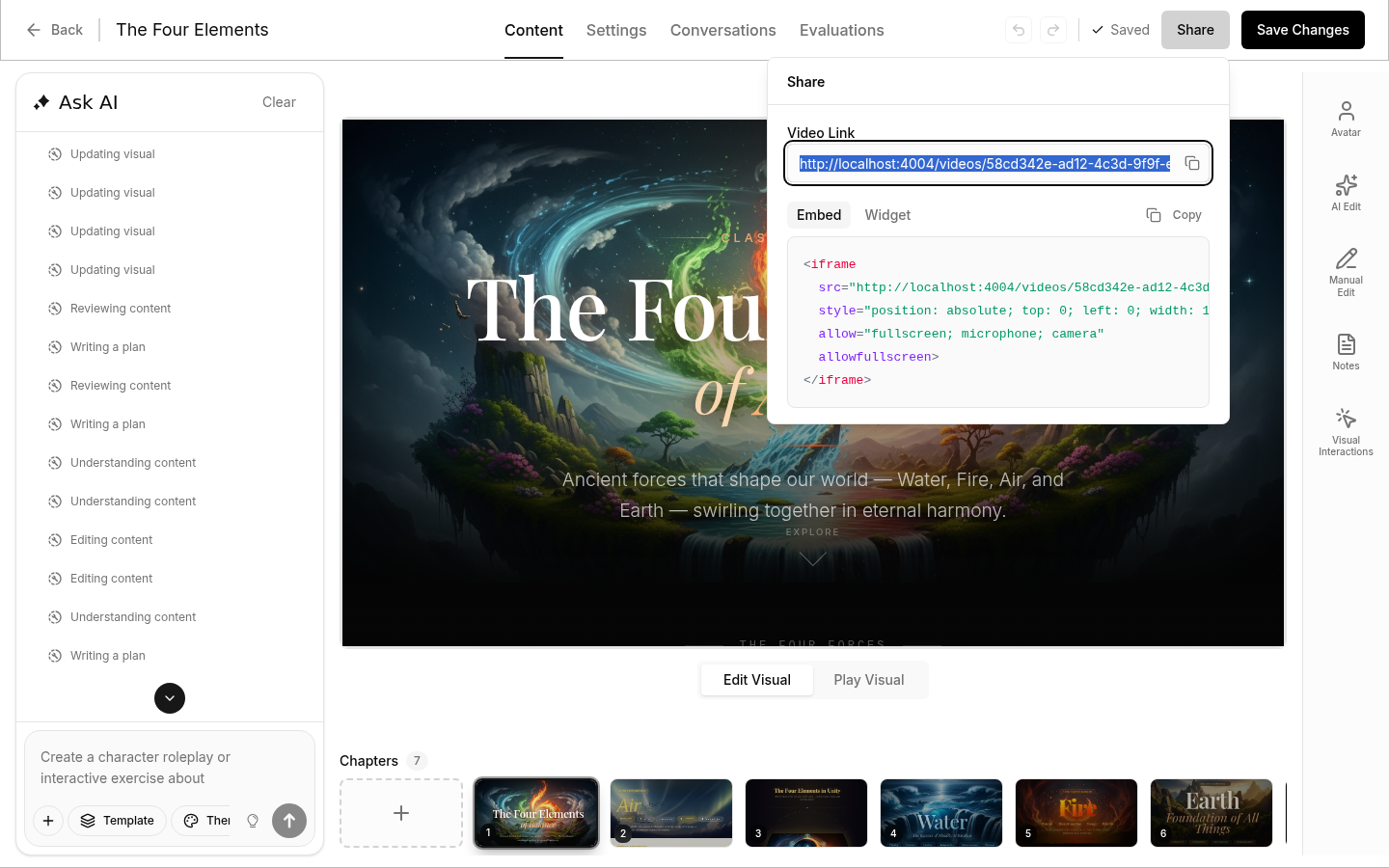
Direct Link Sharing
Every video gets a unique URL that you can share directly.
How to Get It
- Open your video to edit
- Click the Share button
- Copy the direct link
Embedding on Websites
Embed your video directly into your website or application.
How to Get Embed Code
- Open your video
- Click the Share button
- Copy the embed code
Embed Code Format
<iframe
  src="https://app.nesoi.ai/videos/your-video-id"
  width="100%"
  height="600"
  frameborder="0"
  allow="fullscreen"
></iframe>
Widget Embed (Floating Button)
Instead of embedding the video directly on the page, you can add a floating button that opens the video in an overlay when clicked. This is useful when you don't want the video to take up space on your page.
How to Get Widget Code
- Open your video
- Click the Share button
- Switch to the Widget tab
- Click Copy to copy the script code
- Optionally click Demo to preview it live on JSFiddle
Paste the copied <script> tag into your website's HTML. A floating button will appear in the bottom-right corner of the page. When clicked, it opens a fullscreen overlay with your interactive video.
Customizing the Widget
The widget script includes a CONFIG object at the top that you can edit to customize the behavior and appearance:
| Option | Default | Description |
|---|---|---|
buttonText | "Watch Video" | Text displayed on the floating button |
buttonHtml | "" | Custom HTML for the button (overrides buttonText if set — use for icons or images) |
autoPlay | true | Whether the video auto-plays when the overlay opens |
muted | false | Whether the video starts muted |
closeOnOverlayClick | true | Whether clicking the dark backdrop closes the overlay |
triggerStyle | — | CSS properties for the floating button (position, colors, size, etc.) |
overlayStyle | — | CSS properties for the overlay backdrop |
Example: Custom Button Text and Position
To change the button text and move it to the bottom-left corner, edit the CONFIG in the script:
var CONFIG = {
  // ...
  buttonText: "Start Training",
  triggerStyle: {
    position: "fixed",
    bottom: "24px",
    left: "24px",   // changed from right to left
    // ... other styles
  },
};