The Instructor Notes panel lets you control what the AI avatar says during each chapter and how it should interact with viewers. This is where you write the script and set interaction behaviors for each part of your video.
Accessing Instructor Notes
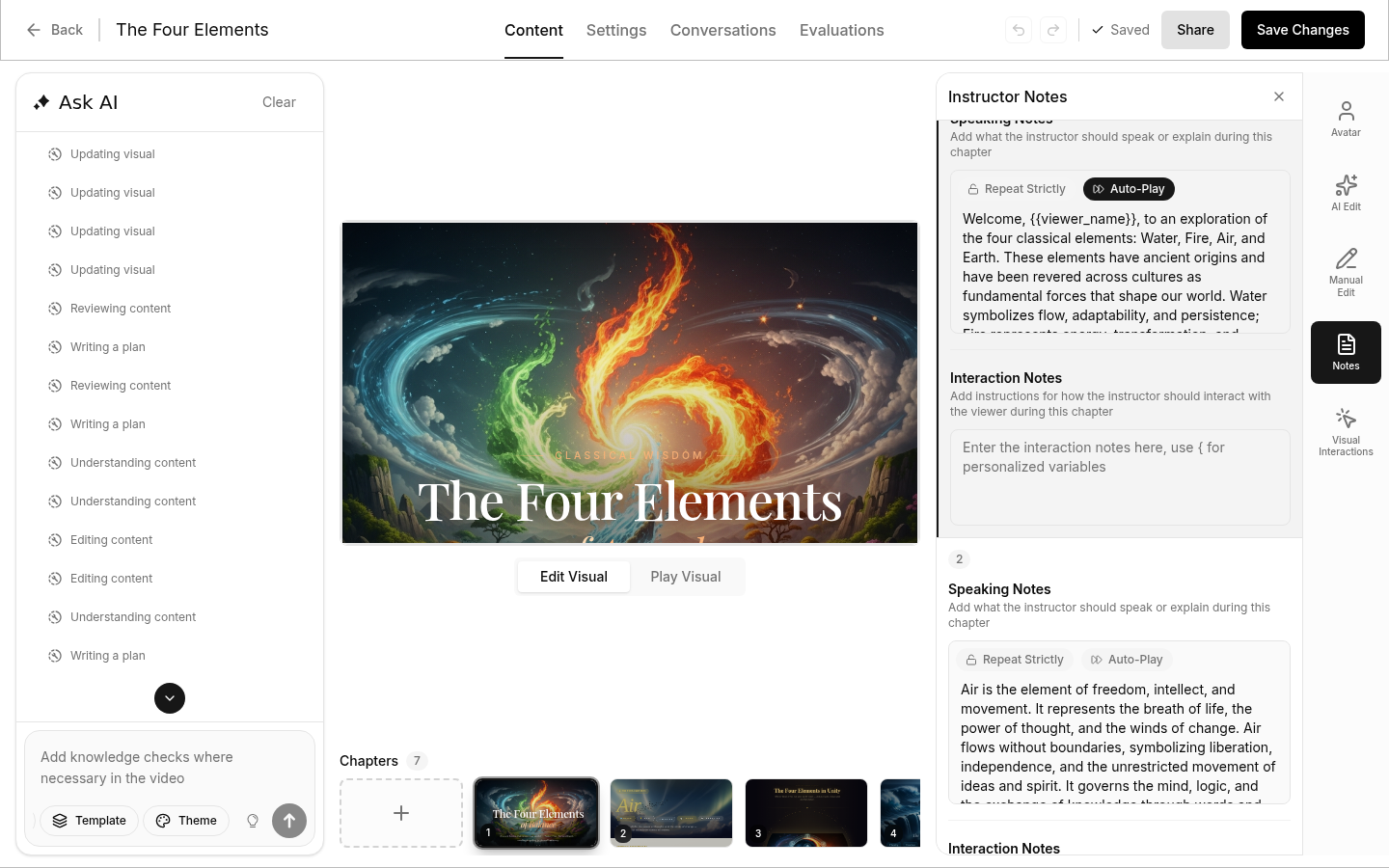
- Open your video in the editor
- Select a chapter from the chapter list at the bottom
- Click the Instructor Notes button to open the panel on the right side
The panel shows notes for the currently selected chapter. Click different chapters to edit their notes.
Speaking Notes
Speaking Notes are the script that your AI avatar reads when presenting each chapter. This is the main content viewers will hear.
Writing Speaking Notes
Enter the text you want the AI to speak in the Speaking Notes field. The AI will convert this text to natural speech.
Tips for effective speaking notes:
- Start strong - Open with a question, surprising fact, or relatable scenario
- Keep it conversational - Write like you're talking to someone, not reading a textbook
- Be concise - Aim for 50-200 words per chapter
- Use natural phrasing - Read it aloud to check how it sounds
Example:
Have you ever spent hours searching for that one email?
Today I'll show you how to organize your inbox in just five minutes.
Let's start with the three folders you actually need.
Using Personalized Variables
You can personalize speaking notes using viewer information. Type { in the text field to open a dropdown of available variables, then select one to insert it.
Variables use double braces: {{variable_name}}
Available variable types:
| Type | Example | Source |
|---|---|---|
| System variables | {{viewer_name}}, {{viewer_email}} | Collected automatically during onboarding |
| Question variables | {{personalized_answer1}}, {{personalized_answer2}} | Answers to your personalization questions (see Settings) |
Example:
Welcome back, {{viewer_name}}! Based on your answer about
{{personalized_answer1}}, I'll focus on what's most relevant to you.
Repeat Strictly Toggle
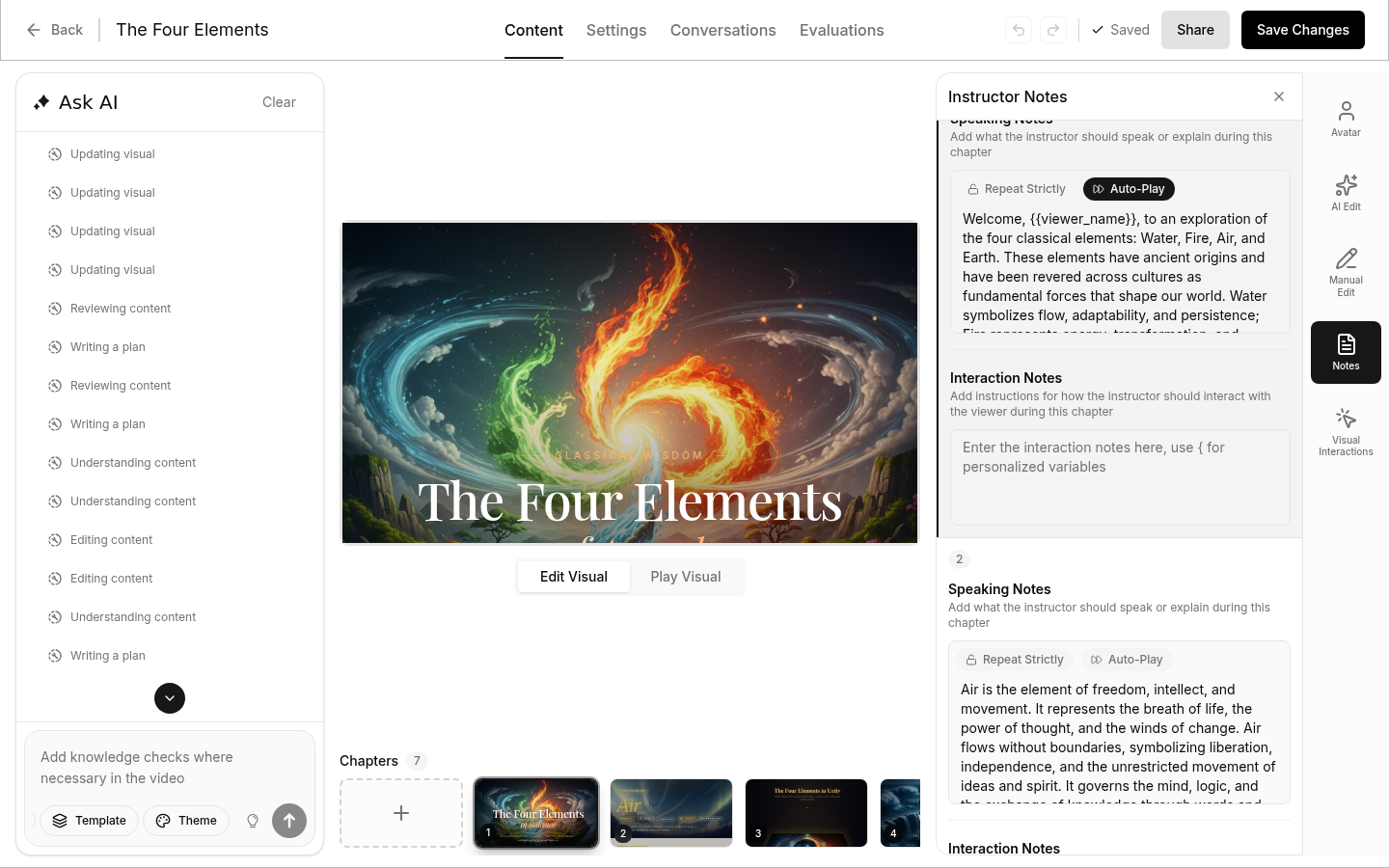
The Repeat Strictly toggle controls how the AI delivers your notes:
| Setting | Behavior |
|---|---|
| On (locked icon) | AI reads your notes exactly as written, word for word |
| Off (unlocked icon) | AI may paraphrase for more natural delivery |
When to use Repeat Strictly:
- Legal or compliance content that must be exact
- Specific terminology that shouldn't be changed
- Carefully crafted messaging
Auto-Play Toggle
The Auto-Play toggle controls what happens after the AI finishes speaking:
| Setting | Behavior |
|---|---|
| On | Automatically advances to the next chapter |
| Off | Waits for viewer interaction before proceeding |
When to use Auto-Play:
- Continuous content that flows naturally between chapters
- Presentations where you want uninterrupted playback
When to turn it off:
- After quiz questions (wait for answers)
- Interactive decision points
- Content that needs viewer reflection
Interaction Notes
Interaction Notes tell the AI how to respond when viewers ask questions or interact during a specific chapter. These are separate from the speaking notes and guide the AI's conversational behavior.
Writing Interaction Notes
Enter instructions for how the AI should handle viewer interactions during this chapter.
Example:
If the viewer asks about pricing, explain that we offer three tiers
and direct them to the pricing chapter. If they ask technical questions
about integrations, provide brief answers and offer to explain more.
Using Personalized Variables
Like speaking notes, interaction notes support personalized variables. Type { to insert them.
Example:
Remember that {{viewer_name}} gave "{{personalized_answer1}}" as their
experience level, so tailor explanations accordingly.
Best Practices
Keep Chapters Focused
Each chapter should cover one main topic. This makes it easier to:
- Write clear speaking notes
- Set appropriate interaction guidelines
- Allow viewers to find specific information
Maintain Consistent Tone
Use the same voice and style throughout your video:
- Same level of formality
- Consistent use of "you" vs "we"
- Similar sentence structure
Test Your Content
Preview each chapter to hear how the AI delivers your notes. Adjust wording if something sounds unnatural.
Use Pronunciations
For brand names, technical terms, or unusual words, set up Pronunciations to ensure correct speech.