Ask AI in Nesoi's video editor is your collaborative partner for creating and refining content. It understands natural language and can help with everything from generating new chapters to fine-tuning existing content.
Accessing the AI Assistant
The AI Assistant panel is located on the left side of the video editor. It works like a chat interface - type your request and the AI responds with changes or suggestions.
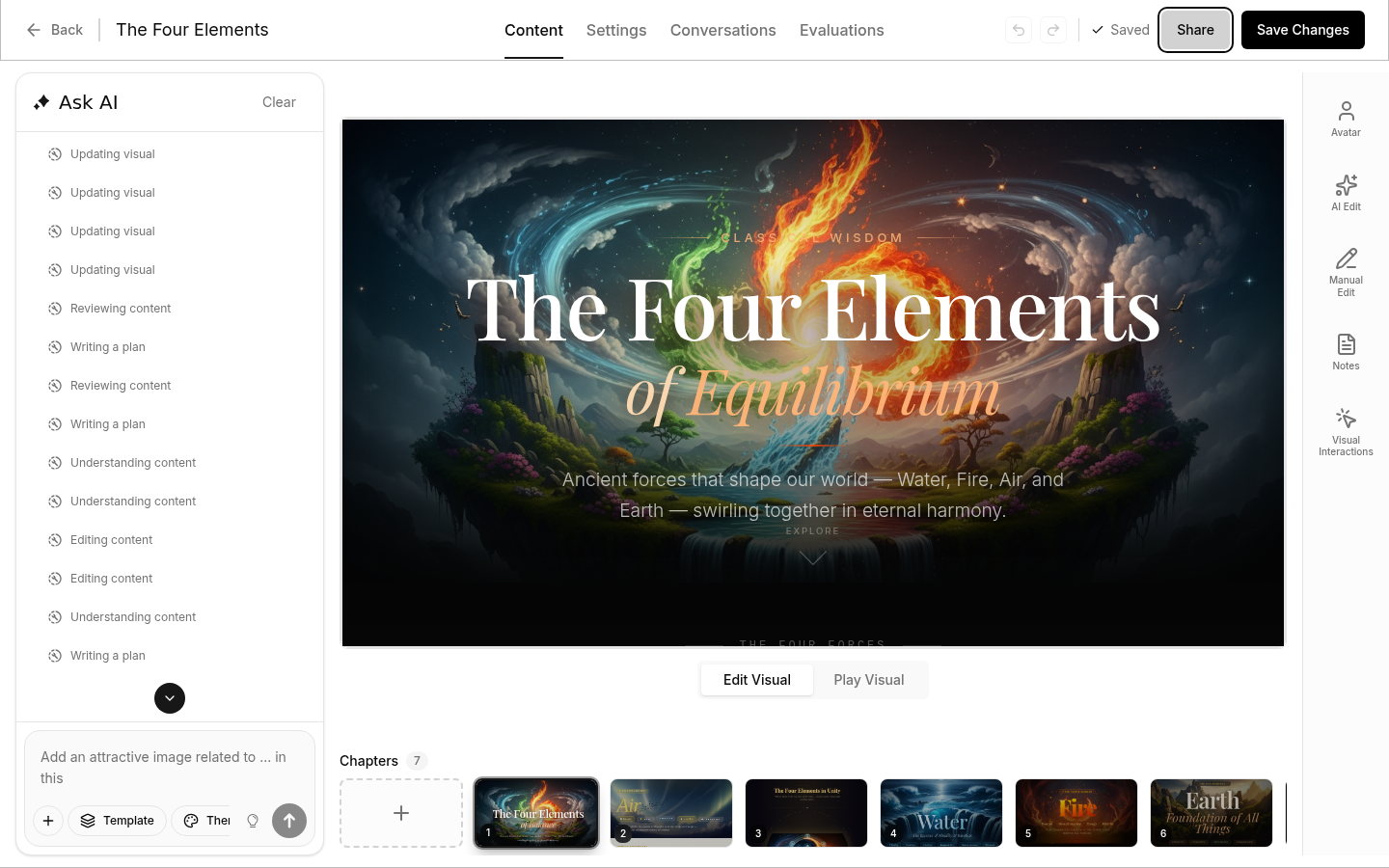
What the AI Can Do
Generate Content
Ask the AI to create new content:
- "Add a chapter about our refund policy"
- "Create a quiz to test understanding"
- "Write an introduction for this video"
Modify Existing Content
Request changes to what you already have:
- "Make chapter 3 shorter"
- "Add more detail to the pricing section"
- "Simplify the language in the technical overview"
Edit Visuals
Modify the visual appearance of chapters:
- "Change the background to blue"
- "Make the title larger"
- "Add an icon next to each bullet point"
Restructure
Reorganize your video structure:
- "Split chapter 2 into two separate chapters"
- "Combine the first three chapters into one"
Improve Quality
Get suggestions for improvements:
- "Review this chapter for clarity"
- "Suggest better ways to explain this concept"
- "Make this more engaging for beginners"
Ways to Submit Requests
From the AI Chat
Type your request in the AI chat panel and press Enter or click Send.
From the Visual Editor
When editing a chapter visual:
- Click on any element you want to modify
- A prompt box appears
- Type your request and click Send
The AI will know which element you selected and apply changes to it.
From the Generate Modal
When creating a new chapter:
- Click "Generate with AI" on an empty chapter
- Describe what you want
- Click Generate
Plan Mode
Plan Mode lets the AI create an outline before generating full content. This gives you a chance to review and adjust the structure before committing.
How to Use It
- Click the lightbulb icon next to the text input — it turns yellow when active
- Type your request and send it
- The AI returns an outline instead of making changes directly
- Review the plan, then ask the AI to proceed or adjust
Plan mode is useful for:
- Complex videos with many chapters
- When you want to review the structure first
- Bulk creation where you want to approve the approach
Undoing Changes
If the AI makes changes you don't want, you can revert:
- Undo — Click the undo button in the editor toolbar to step back through recent changes
- Rewind — Ask the AI to revert to a previous state (e.g., "undo the last change" or "go back to the version before you edited chapter 3")
The editor tracks your full editing history, so you can always step back.
Request Queue
You don't have to wait for the AI to finish before submitting another request. The queue system lets you keep working while requests are processed.
How It Works
- Submit requests anytime - they're added to the queue automatically
- Requests are processed in order
- A queue indicator shows how many requests are waiting
- Your queue persists even if you refresh the page
Managing the Queue
Click the queue indicator to:
- View pending requests - See what's waiting
- Remove items - Click X to cancel a request
- Clear all - Remove all queued requests
Tips
- Be specific with each request so the AI knows exactly what to do
- Select elements before typing to edit specific parts
- Check your queue before closing the editor
- Maximum 10 requests can be queued at once
Examples
Creating New Chapters
Prompt: "Add a chapter that explains how to contact support, including phone, email, and chat options"
Result: The AI creates a new chapter with:
- Title: "Contacting Support"
- Visual layout with contact options
- Speaking notes covering each contact method
Improving Content
Prompt: "The introduction feels too formal. Make it more conversational and friendly"
Result: The AI rewrites the introduction with:
- Casual language
- More direct address to viewers
- Friendly tone throughout
Creating Quizzes
Prompt: "Add a quiz at the end to test viewer understanding"
Result: The AI creates:
- New quiz chapter
- 3-5 relevant questions
- Feedback for correct and incorrect answers
Tips for Effective Prompts
- Be specific - "Make the title blue" is better than "change the colors"
- Provide context - "Make this section simpler for beginners" tells the AI who the audience is
- One thing at a time - Submit focused requests rather than combining multiple changes
- Reference chapters - "In chapter 3, add more examples" helps the AI find the right content