Organization Settings let you manage your team members, customize your profile, and adjust dashboard preferences like appearance and audio.
Accessing Settings
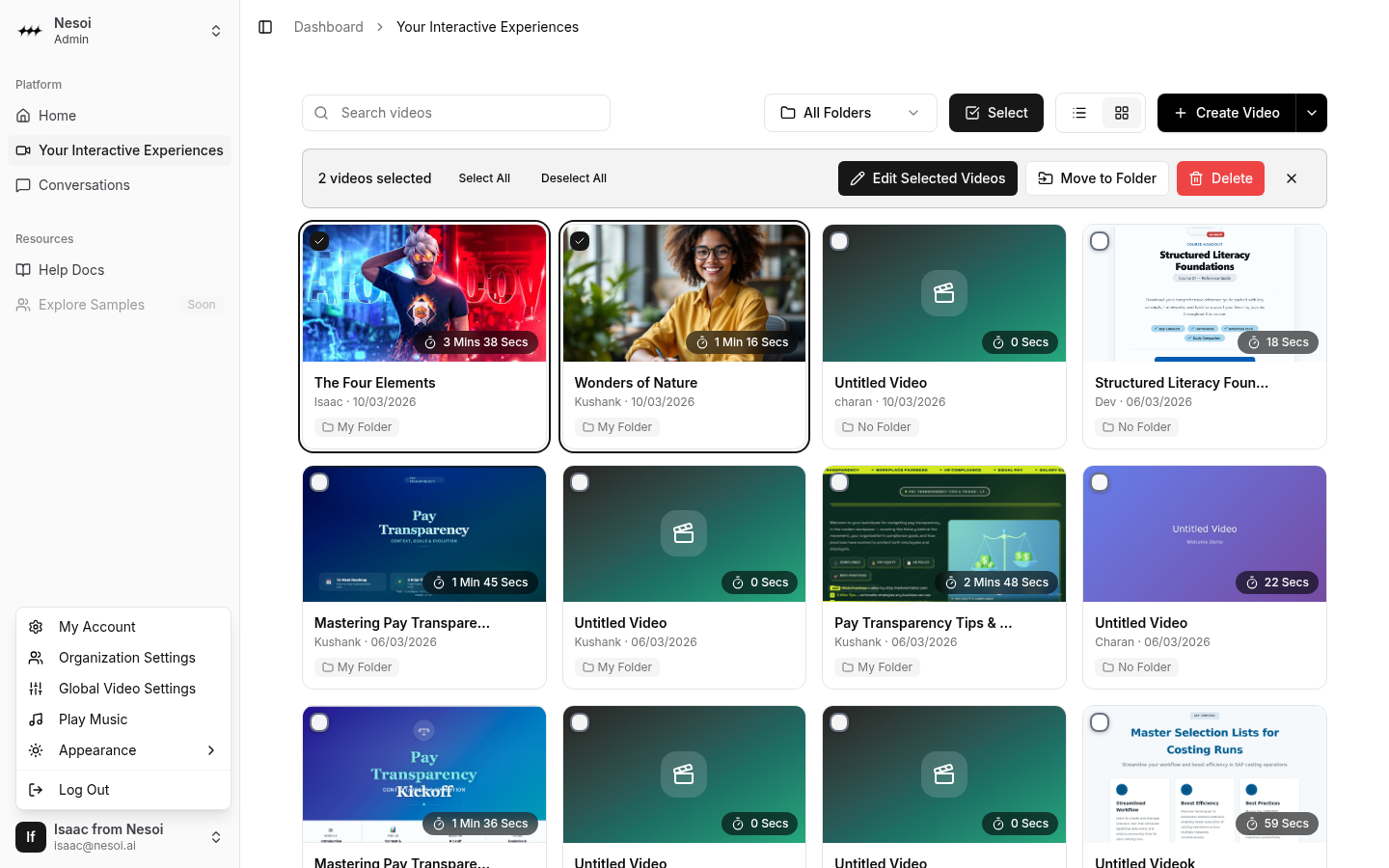
Settings are accessed through the user dropdown menu in the sidebar:
- Click your profile icon/name at the bottom of the sidebar
- Select the setting you want to change
Team Management
Organization Settings
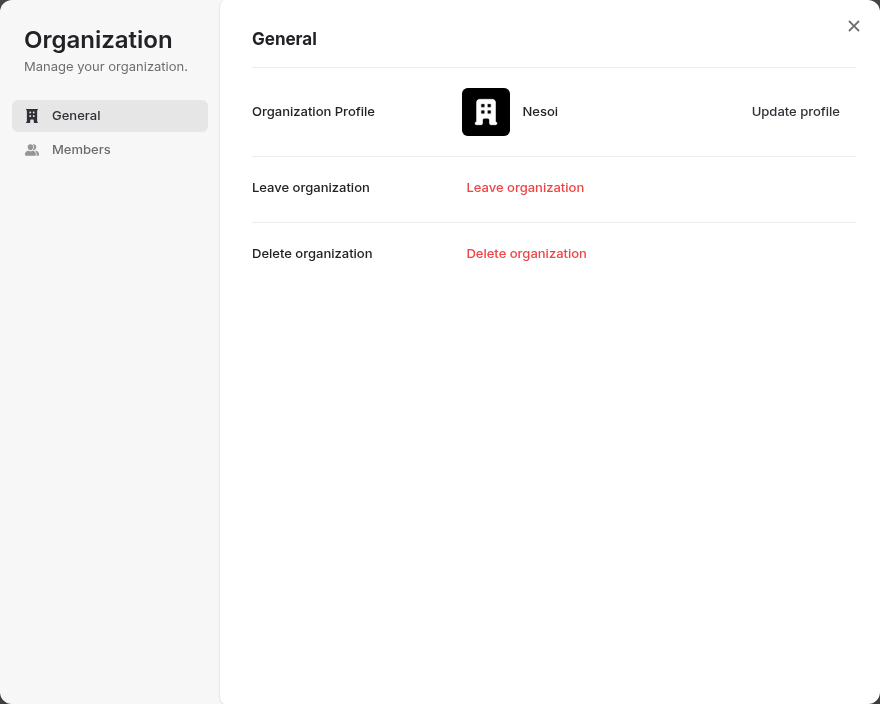
Manage your organization and team members:
- Click your profile in the sidebar
- Select Organization Settings
- The organization management panel opens
Inviting Members
To add new team members:
- Open Organization Settings
- Go to the Members section
- Click Invite
- Enter the email address
- Select a role (Admin or Member)
- Send the invitation
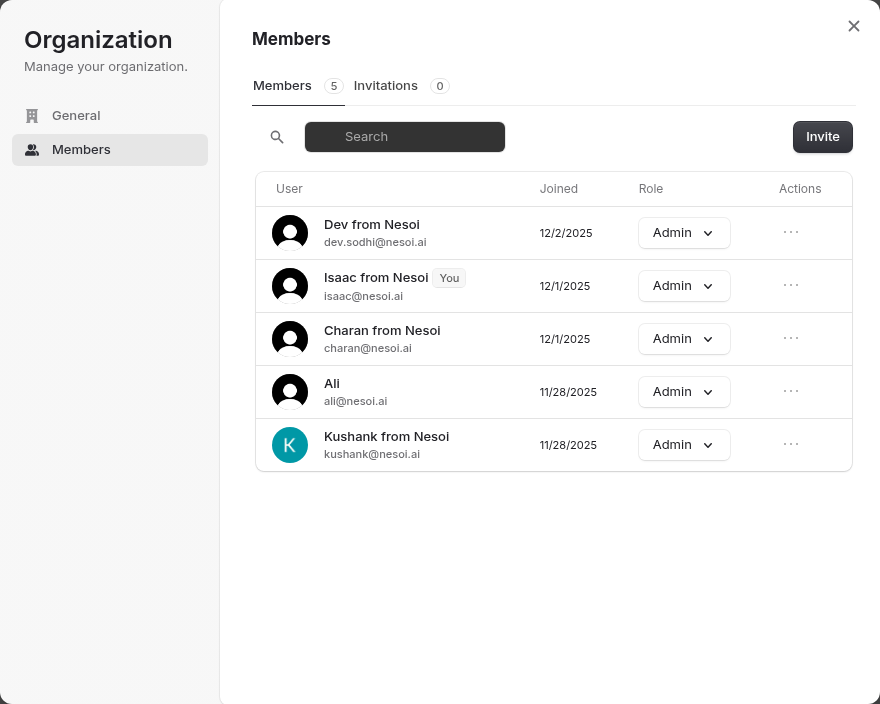
Invited users receive an email with a link to join your organization.
Member Roles
| Role | Permissions |
|---|---|
| Admin | Full access - manage members, settings, and all videos |
| Member | Create and edit videos, view conversations |
Removing Members
- Open Organization Settings
- Find the member in the list
- Click the remove option
- Confirm the removal
Switching Organizations
If you belong to multiple organizations:
- Click the organization name in the sidebar
- Select a different organization from the dropdown
- The dashboard switches to that organization's content
Profile Settings
My Account
Manage your personal profile:
- Click your profile in the sidebar
- Select My Account
- Update your profile information
Available settings:
- Profile picture
- Display name
- Email preferences
- Password and security
Appearance
Theme Selection
Choose your dashboard color scheme:
- Click your profile in the sidebar
- Hover over Appearance
- Select an option:
| Option | Description |
|---|---|
| Light | Light background with dark text |
| Dark | Dark background with light text |
| System | Matches your device preference |
Theme Editor
For advanced customization:
-
Access the Theme Editor from Appearance settings
-
Customize:
- Colors - Primary, secondary, accent, and more
- Typography - Font family selection
- Other - Border radius, spacing, shadows
-
Features:
- Live preview as you make changes
- Undo/Redo history
- Save custom themes
- Import/Export CSS variables
Audio Settings
Background Music
Toggle ambient music in the dashboard:
- Click your profile in the sidebar
- Click Play Music to start
- Click Stop Music to pause
Music plays on loop while you work in the dashboard.
Logging Out
To sign out:
- Click your profile in the sidebar
- Select Log Out
- You'll be redirected to the login page
Your work is automatically saved before logging out.