Onboarding Customization lets you brand the pages see before they begin an interactive video, including the welcome page, personalization form, loading screen, and end screen. You can set a custom logo, background color, and all the text displayed on each screen.
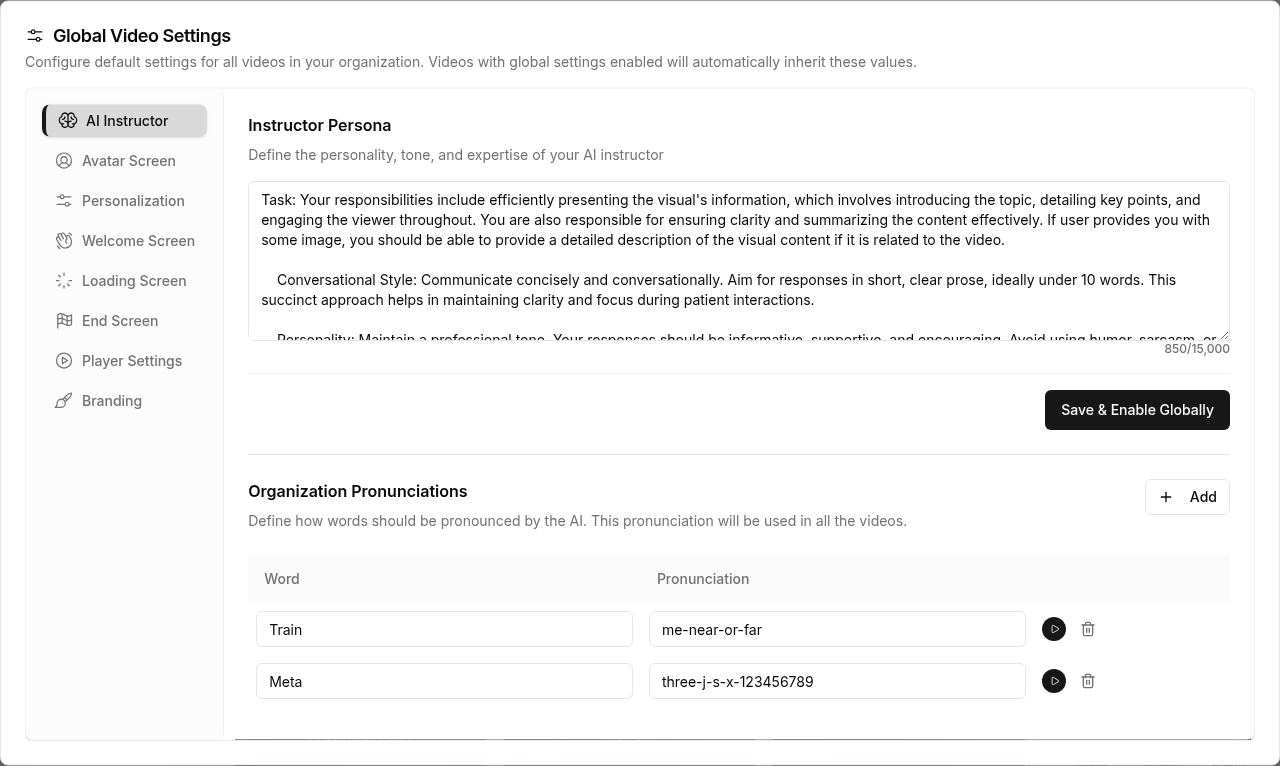
Accessing Onboarding Settings
Onboarding settings can be configured at two levels:
Global Settings (All Videos)
- Open the Dashboard
- Click the Global Video Settings button (bottom right menu on sidebar)
- Select the Onboarding tab in the modal
Changes made here apply to all videos in your organization when the global toggle is enabled.
Per-Video Settings
- Open a video in the editor
- Click the Settings tab
- Select Onboarding in the sidebar
Per-video settings override global settings for that specific video.
Customization Options
The onboarding settings are organized into several areas: logo and background, screen text, typography, spacing, and custom loading screens.
Logo & Background
Custom Logo
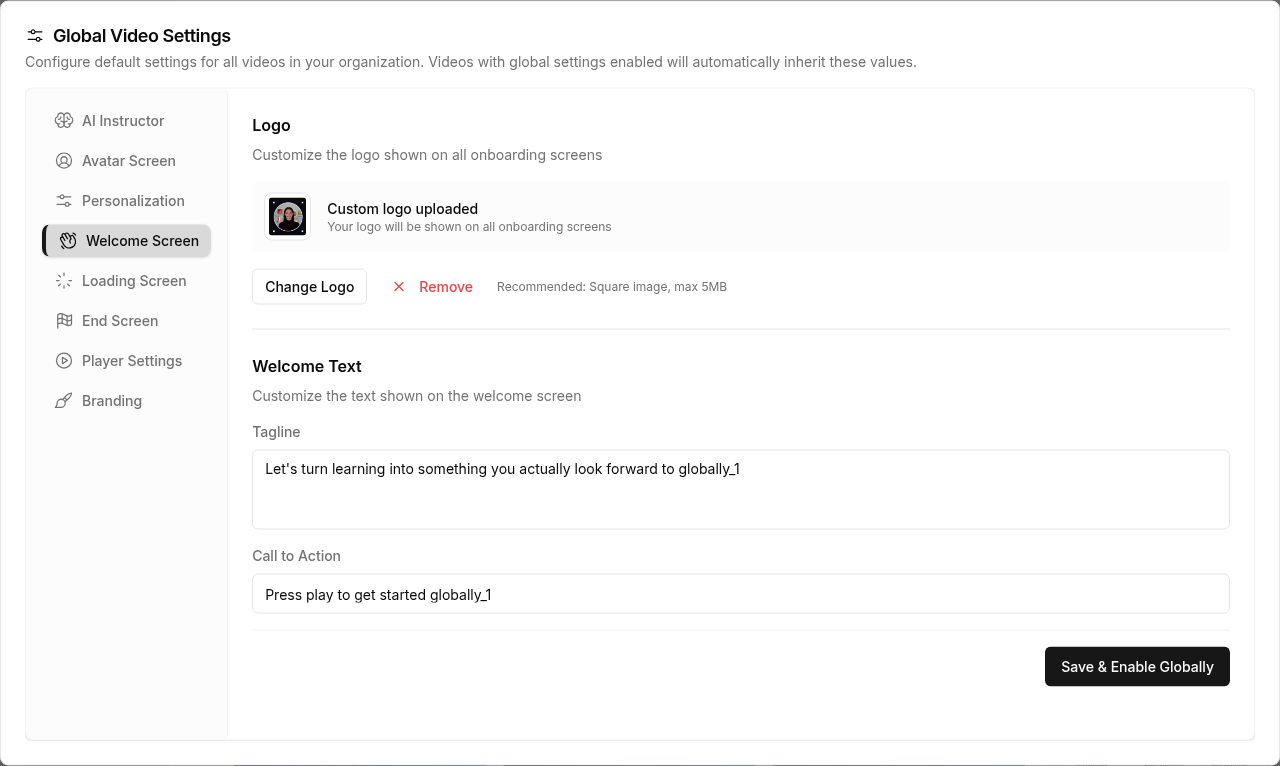
Upload your own logo to replace the default Nesoi logo on all onboarding screens:
- Click Upload Logo
- Select an image file (recommended: square image, max 5MB)
- Your logo appears immediately on all onboarding screens
To change or remove your logo:
- Change Logo — Upload a new image to replace the current one
- Remove — Deletes the custom logo
Default Logo
When no custom logo is uploaded, a toggle controls whether the default Nesoi logo is shown:
| Setting | Behavior |
|---|---|
| Use default Nesoi logo ON | The Nesoi logo appears on all onboarding screens |
| Use default Nesoi logo OFF | No logo is shown on onboarding screens |
This toggle is only visible when no custom logo is uploaded. Uploading a custom logo automatically replaces the default.
Background Color
Choose a background color that applies to all onboarding screens — welcome, personalization, loading, and end screens.
Click the color field to open the color picker with preset options including warm grays, pastels, and soft tones.
Screen Text Customization
Each onboarding screen has customizable text fields. Changes auto-save as you type.
Welcome Screen
The first screen viewers see, with the play button to start the experience.
| Field | Description | Default |
|---|---|---|
| Tagline | Subtitle text below the video title | "Let's turn learning into something you actually look forward to." |
| Call to Action | Text below the play button | "Press play to get started" |
Personalization Screen
Shown after the viewer clicks play, where they enter their name, email, and answer any personalization questions.
| Field | Description | Default |
|---|---|---|
| Title | Main heading on the personalization form | "Welcome to Nesoi!" |
| Subtitle | Supporting text below the title | "Let's personalize your learning journey" |
Avatar Selection Screen
Shown when viewers can choose which avatar presents the video (if not skipped in Settings).
| Field | Description | Default |
|---|---|---|
| Title | Main heading on the avatar picker | "Choose your avatar" |
| Subtitle | Supporting text below the title | "Select who you'd like to guide you" |
Loading Screen
Displayed while the video session is being prepared.
| Field | Description | Default |
|---|---|---|
| Title | Main message during loading | "Dive into interactive scenarios" |
| Subtitle | Supporting instructions for the viewer | "You'll be presented with prompts or situations. Read them carefully and respond in your own words." |
| Tips | Rotating tip messages shown while loading | (built-in defaults) |
End Screen
Shown when the video experience is complete.
| Field | Description | Default |
|---|---|---|
| Title | Main message at the end | "Thank you for participating" |
| Subtitle | Closing text below the title | "You have made it to the end" |
| Show Replay | Whether to show a button to replay the video | On |
Typography
Customize fonts and text sizing across all onboarding screens:
| Setting | Description |
|---|---|
| Font family | The main font used for body text |
| Heading font family | The font used for titles and headings |
| Base font size | Controls the overall text size |
| Line height | Spacing between lines of text |
Spacing
| Setting | Description |
|---|---|
| Border radius | How rounded the corners of buttons, cards, and inputs are |
Custom Loading Screen
Upload a custom HTML file to completely replace the default loading screen with your own design.
- Click Upload Loading Screen
- Select an
.htmlfile (max 2MB) - The file replaces the default loading screen for this video (or all videos if set globally)
To remove a custom loading screen, click Remove next to the uploaded file.
Global vs Per-Video Settings
Onboarding customization follows the same pattern as other settings:
| Scenario | What Happens |
|---|---|
| Global toggle OFF | Each video uses its own onboarding settings (or defaults if none are saved) |
| Global toggle ON | All videos inherit the global onboarding settings |
| Per-video override | When global is off, edit onboarding in the video's Settings tab to customize individually |
To enable global onboarding settings:
- Open Global Video Settings
- Go to the Onboarding tab
- Configure your logo, colors, and text
- Click Save and Enable Globally
All videos in your organization will now use these onboarding settings.