Folders
Folders help you organize your videos into groups. Every video belongs to a folder.
Creating a Folder
- Click the folder dropdown in the toolbar above your video list
- Click New Folder
- Enter a name
- Pick a color
- Click Create
Managing Folders
- Rename — Click the folder name to edit it
- Change color — Update the color from the folder options
- Delete — Remove the folder (videos inside are moved to the default folder)
Moving Videos to Folders
You can move videos individually or in bulk:
- Individual — Click the menu on a video card and select Move to Folder
- Bulk — Select multiple videos and use the Move to Folder bulk action (see below)
Bulk Create
Create multiple videos at once from a single prompt.
- Click Create new video from the dashboard
- Switch to Bulk Create mode
- Enter your prompt — the AI generates multiple videos from it
- Optionally attach different files to each video
- Click Generate
You can also use Plan Mode during bulk creation to review the outlines before the AI generates full content.
Bulk Edit
Apply changes across multiple existing videos at once.
- Select the videos you want to edit (see Select Mode below)
- Click Edit Selected Videos
- Choose what to update — theme, templates, or other properties
- Apply the changes
Bulk Actions
Bulk actions let you perform operations on multiple videos at once.
Entering Select Mode
To start selecting multiple videos:
- Navigate to Your Interactive Experiences tab in the dashboard
- Click the Select button in the toolbar (between the folder dropdown and view toggle)
- You'll see checkboxes appear on all your video cards
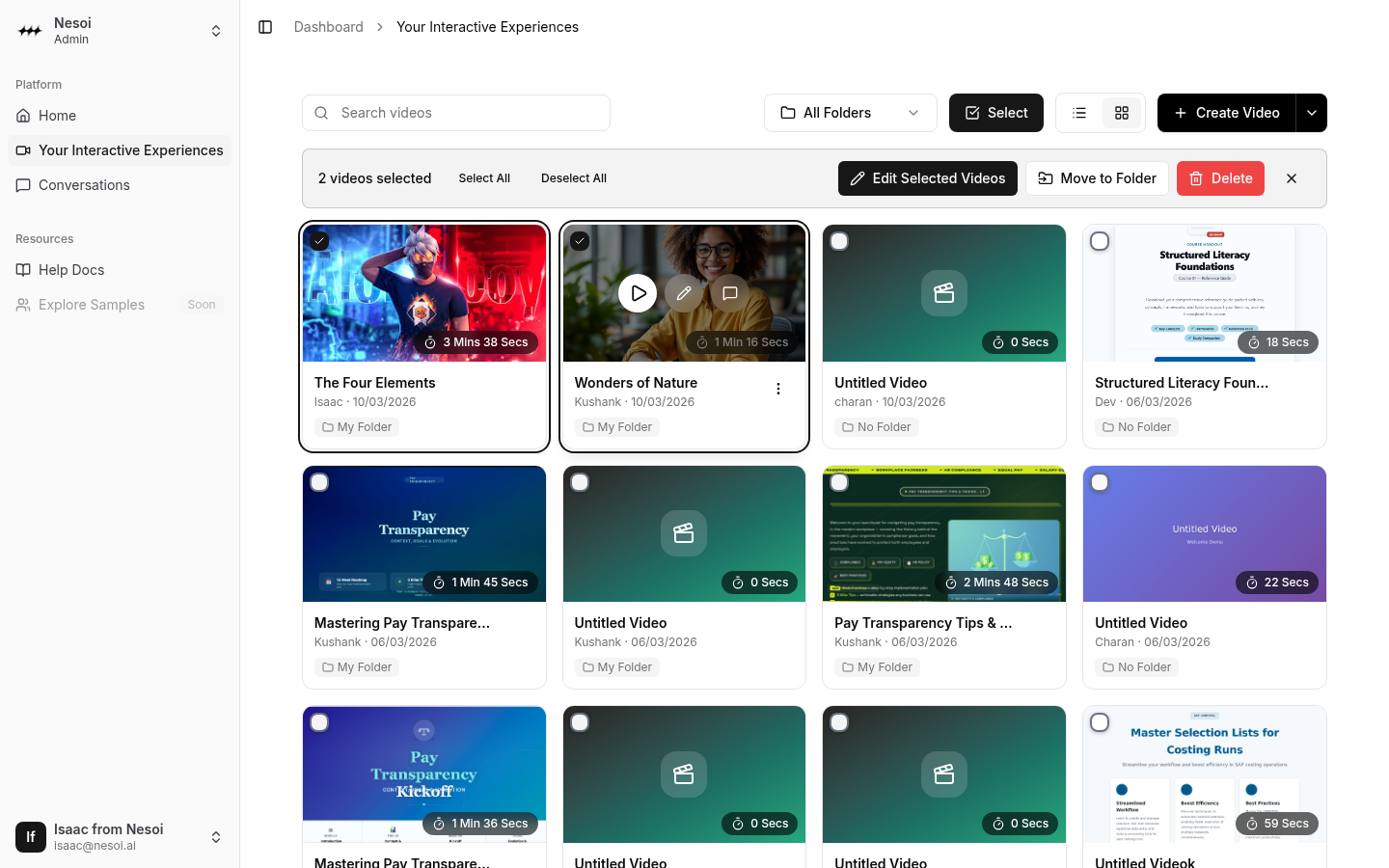
When select mode is active, the Select button will be highlighted to indicate you're in selection mode.
Selecting Videos
Once in select mode, you can select videos in several ways:
- Click individual checkboxes on video cards to select or deselect them
- Click on a video card (in select mode) to toggle its selection
- Use Select All to select all videos on the current page
- Use Deselect All to clear your selection
The bulk actions bar will show how many videos you have selected.
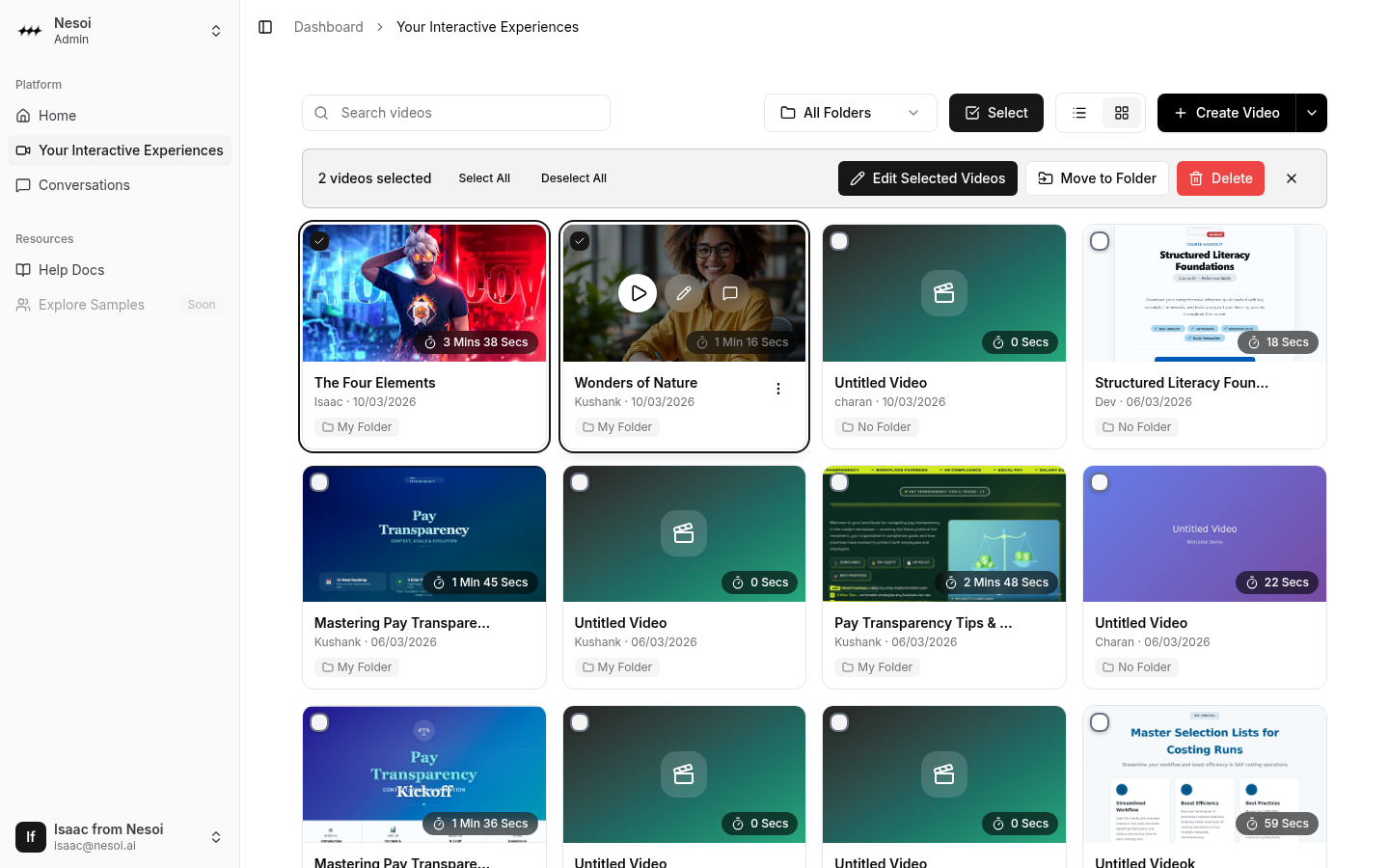
Available Bulk Actions
When you have videos selected, a bulk actions bar appears with the following options:
Edit Selected Videos
Opens the bulk edit modal where you can modify properties across all selected videos at once.
Move to Folder
Move all selected videos to a specific folder:
- Click Move to Folder
- Search for a folder or scroll through the list
- Click on a folder to select it (a checkmark will appear)
- Click the Move to [folder name] button to confirm
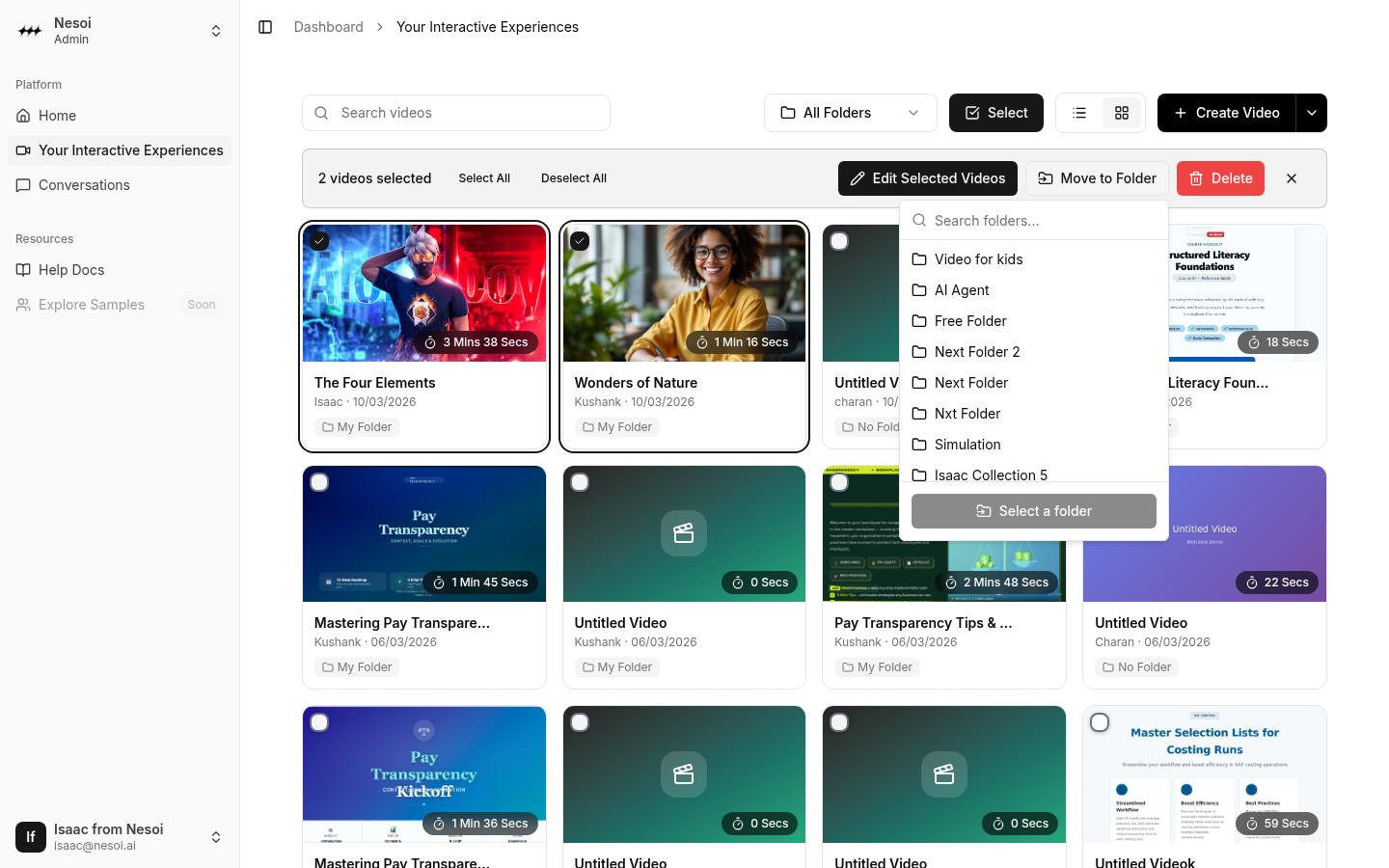
Your videos will be moved and the folder counts will update automatically.
Delete Videos
Permanently remove selected videos:
- Click the Delete button
- Review the list of videos that will be deleted
- Click Delete X Videos to confirm
Note: Deleted videos cannot be recovered. Make sure you've selected the correct videos before confirming.
Exiting Select Mode
To exit select mode:
- Click the X button in the bulk actions bar
- Click the Select button again
- Complete a bulk action (selection is automatically cleared)