The Conversations page shows all viewer interactions with your AI across every video. Use it to understand what viewers are asking, how the AI is responding, and identify areas for improvement.
Accessing Conversations
- Click Conversations in the sidebar
- The conversations dashboard opens showing all viewer sessions
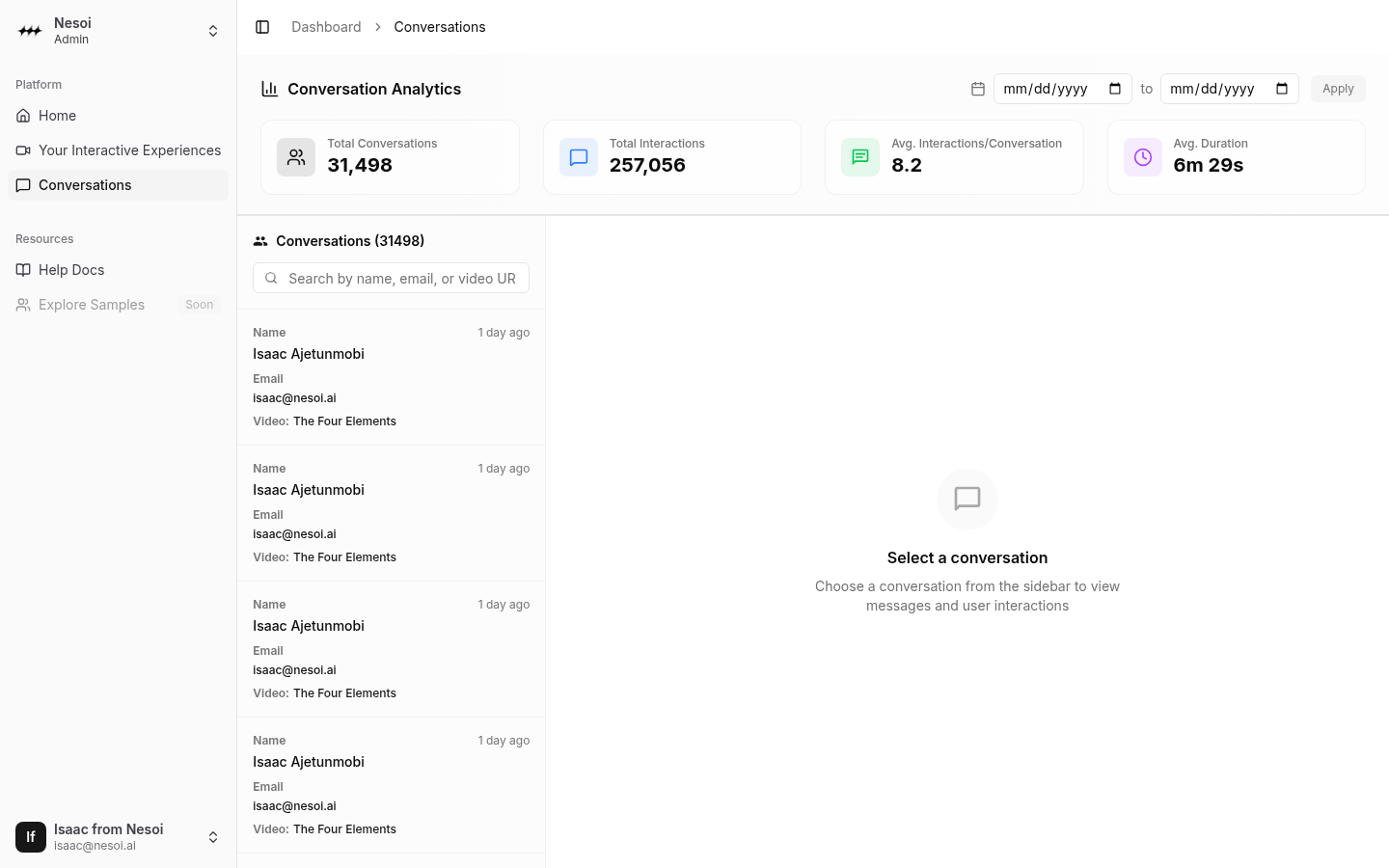
Conversations Overview
Analytics Header
At the top, you'll see key metrics:
| Metric | Description |
|---|---|
| Total Conversations | Number of unique viewer sessions |
| Total Interactions | Total messages exchanged |
| Avg. Interactions | Average messages per conversation |
| Avg. Duration | Average session length |
Filtering by Date
Narrow down conversations by date range:
- Click the Start Date field
- Select a start date
- Click the End Date field
- Select an end date
- Click Apply to filter
Click Clear to remove date filters.
Conversation List
The left sidebar shows all conversation sessions:
Session Information
Each entry displays:
- Viewer name - Who had the conversation
- Email - Viewer's email address
- Video title - Which video they watched
- Last message - Most recent interaction timestamp
Searching
Find specific conversations:
- Type in the search box
- Search by:
- Viewer name
- Email address
- Video URL/title
- Results filter as you type
Loading More
Conversations load in batches of 20. Scroll down to load more sessions automatically.
Message View
Click any conversation to see the full message history:
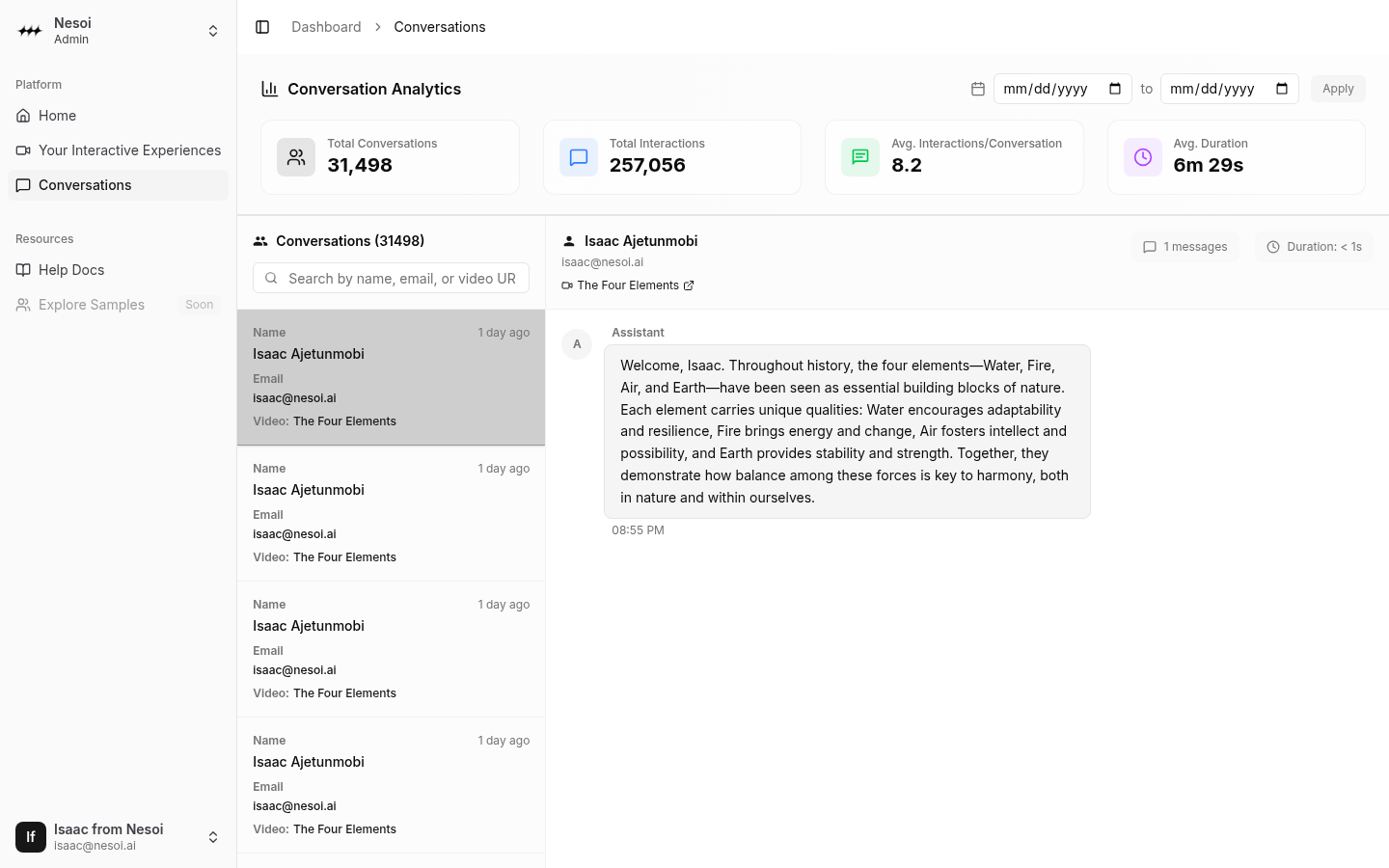
Message Details
Each message shows:
- Sender - User, Assistant, or Error
- Content - The message text
- Timestamp - When it was sent
- Attachments - Images if any were shared
Feedback Indicators
Messages may show feedback badges:
- Thumbs up - Viewer found response helpful
- Thumbs down - Viewer found response unhelpful
Session Summary
At the top of the message view:
- Total message count
- Session duration
- Link to the video
Use Cases
Improving AI Responses
Review conversations to:
- Identify common questions
- Find confusing explanations
- Spot incorrect or unhelpful responses
- Update instructor persona based on patterns
Understanding Viewers
Learn about your audience:
- What topics generate the most questions
- Where viewers get stuck
- What additional content might be needed
- How viewers phrase their questions
Quality Assurance
Monitor AI performance:
- Check response accuracy
- Verify tone matches your brand
- Ensure appropriate handling of edge cases
- Track improvement over time
Per-Video Conversations
To see conversations for a specific video only:
- Open the video in the editor
- Click the Conversations tab at the top
- View conversations for just that video
This is useful when:
- Evaluating a specific video's performance
- Making targeted improvements
- Reviewing feedback after updates
Tips
Regular Review
Check conversations regularly to:
- Catch issues early
- Understand trending questions
- Keep content relevant
Use Feedback Data
Pay attention to thumbs up/down:
- High negative feedback indicates problems
- Positive feedback shows what's working
Update Based on Patterns
If you see repeated questions:
- Add content to address them
- Update instructor persona with guidance
- Consider adding a dedicated chapter